Help articles
CATEGORY: AnalyticsWhatsApp
WhatsApp campaign analytics
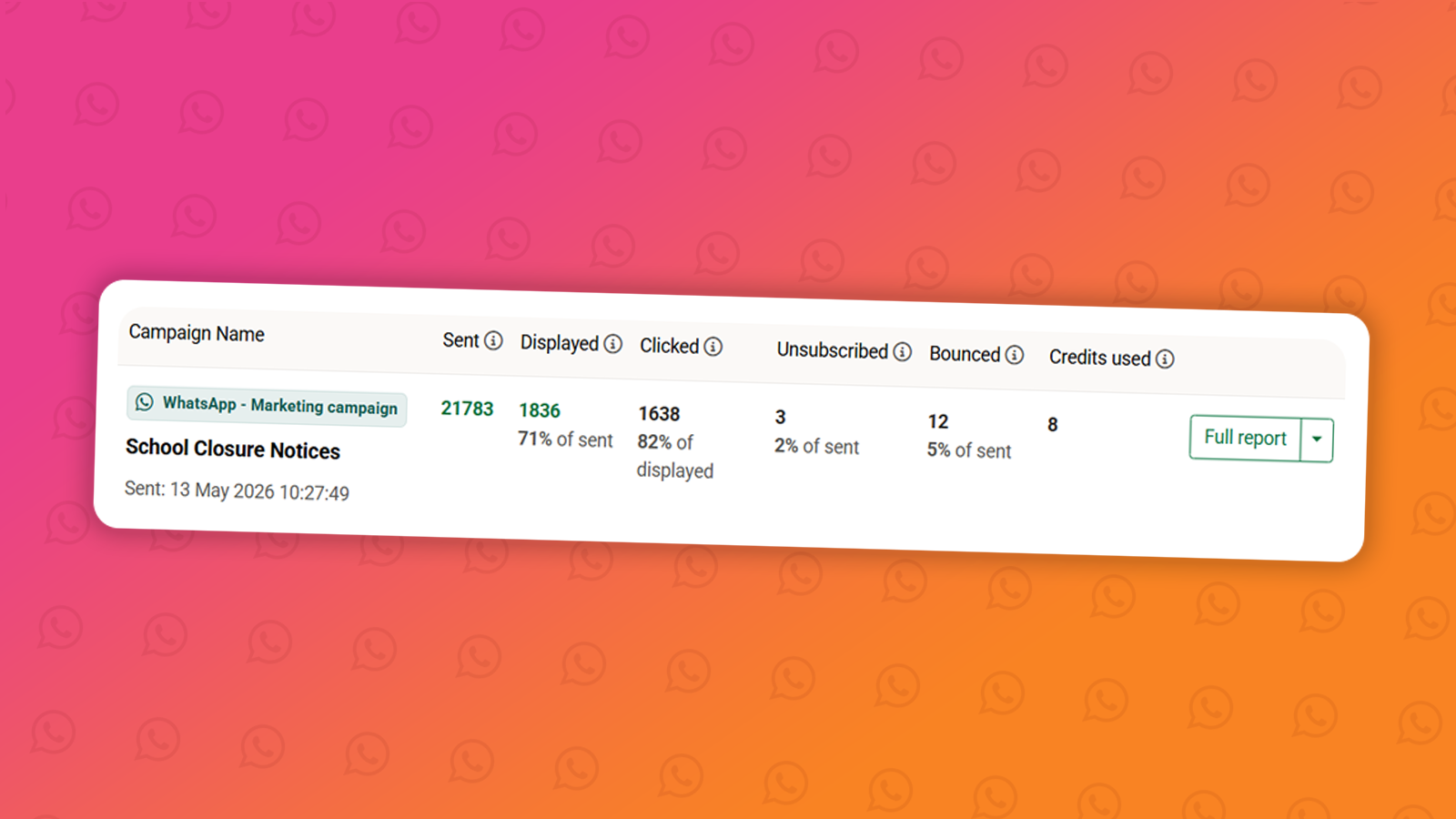
Once a WhatsApp campaign has been sent, you can track its performance through the Analytics section. WhatsApp reporting gives you visibility over how your messages were delivered and engaged with, helping you understand what's working and make more informed decisions for future campaigns.
Accessing your reports
From the main navigation go to Analytics > Campaign reports and switch to the 'WhatsApp' tab. Here you’ll find all the WhatsApp campaigns that have been sent from that account.
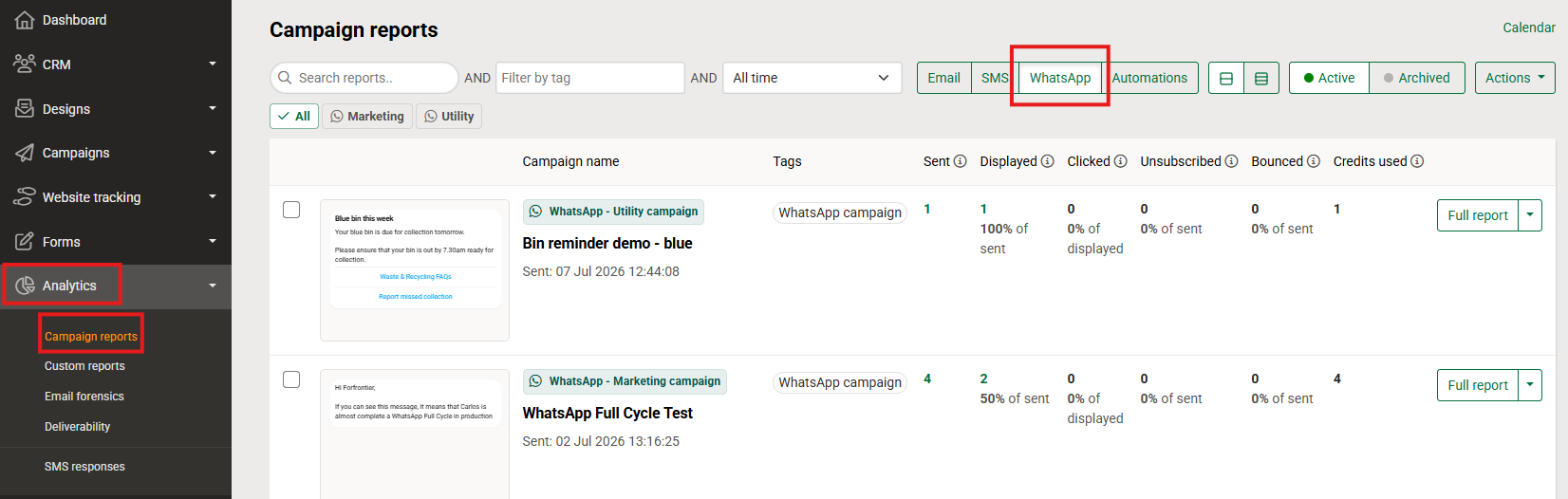
Here you can see the basic stats such as how many messages were sent, how many were displayed/opened and how many clicks the message gained etc.
Click the Full Report button next to the campaign you want to review in further detail.
Campaign summary stats
At the top of the full report page, you'll see a summary of the key figures for your campaign send, including how many contacts it was sent to and the headline metrics for delivery and engagement. These give you an at-a-glance view of how the campaign performed before diving into the detail (similar to the list view).

Benchmarking tab
The default view when opening a full report is the Benchmarking tab. This compares the performance of your current campaign against your previous three WhatsApp campaign sends, so you can see at a glance whether your results are improving, declining, or staying consistent.
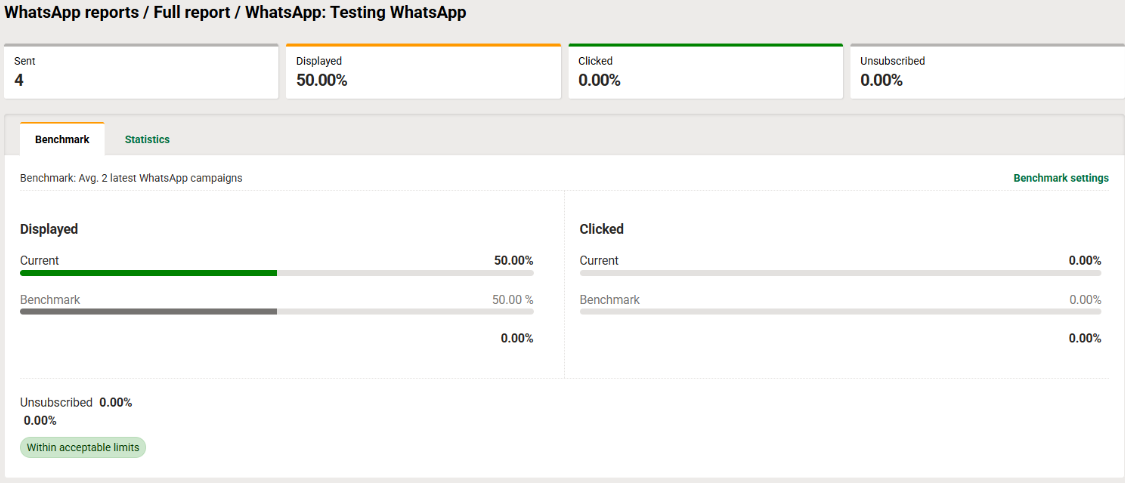
For example, if your current campaign had a delivery rate of 92% and the benchmark across your last three sends was 87%, you'll see it displayed with an upward arrow indicating improvement.
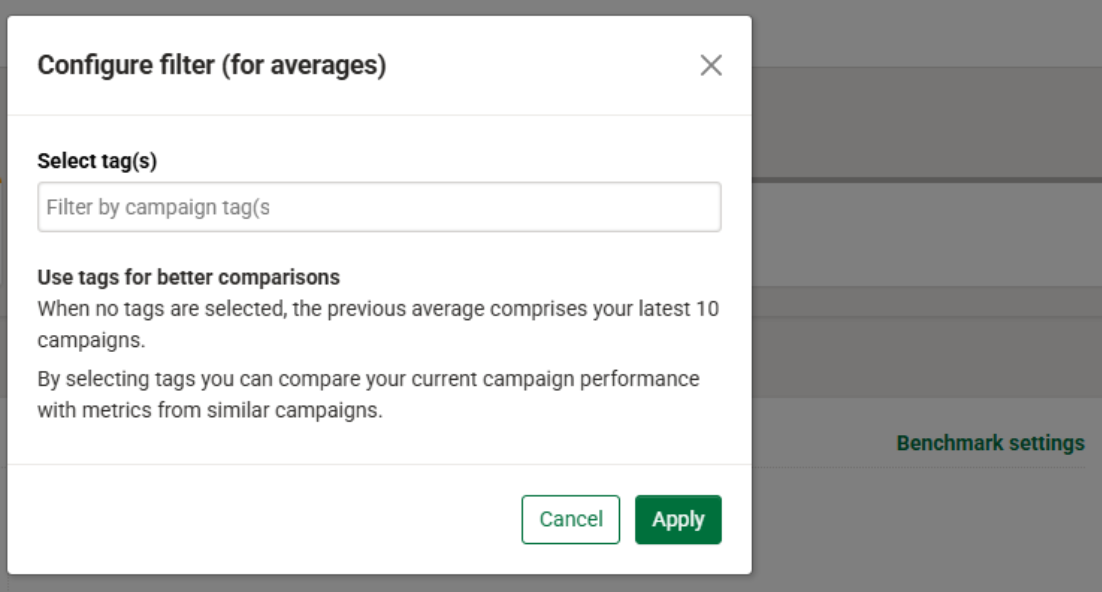
You can adjust what your campaign is benchmarked against using the Benchmark Settings link in the top right corner of the report. This opens a settings panel where you can choose to benchmark against campaigns with a specific tag rather than simply your last three sends. This is particularly useful if you run different types of WhatsApp campaigns, for example, appointment reminders and event announcements and want to compare like for like.
To use this, select the relevant tag from the dropdown and click Apply. The benchmark will update to reflect only campaigns that share that tag. You can add multiple tags if needed.
Tip: To get the most from benchmarking, make sure you apply tags to your campaigns before sending. Refer to our guide for more on using tags within e-shot.
Statistics tab
Switching to the Statistics tab shows performance data for the specific campaign you're viewing, without the comparison to other sends. This is useful when you want a clear, standalone picture of how a single campaign performed.
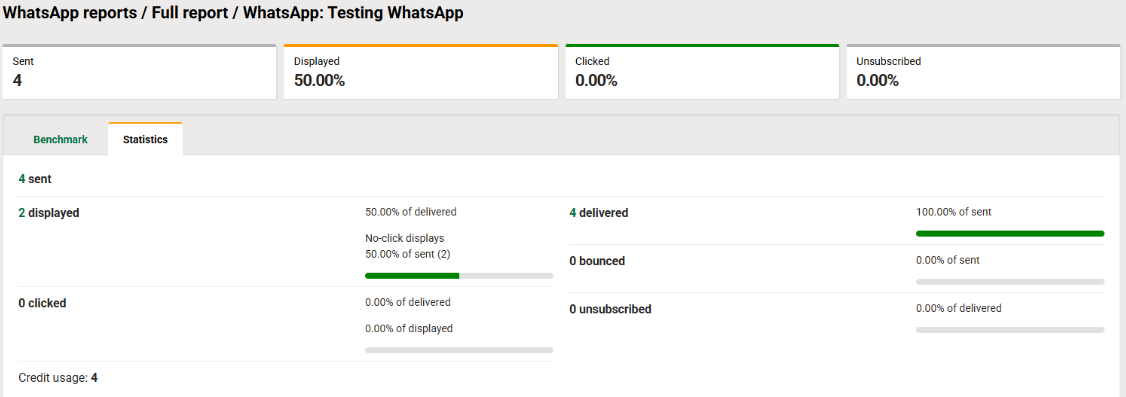
The Statistics tab includes a detailed numerical breakdown of each metric, which is covered below.
WhatsApp metrics explained
WhatsApp reporting differs from email in a few important ways. Rather than opens and clicks, WhatsApp tracks delivery and read status at the message level. Here's what each metric means:
Sent — the total number of messages that were submitted to WhatsApp for delivery.
Displayed — the number of messages that were opened and read by the recipient. This is equivalent to an open or display rate in email reporting. Note that read receipts depend on the recipient's WhatsApp privacy settings. if a contact has turned off read receipts, their reads will not be counted here.
Clicked — if your WhatsApp design included buttons (such as an unsubscribe link or a call to action), this shows how many recipients clicked each one. This is the closest equivalent to click-through rate in email analytics and is a strong indicator of engagement.
Unsubscribes — the number of contacts who opted out via the unsubscribe button in your message. These contacts will be automatically removed from future sends and their preferences updated accordingly.
Bounced — the number of messages sent that could not be sent entirely and bounced back/weren't delivered at all.
Credits used — the number of WhatsApp credits that were used for that campaign send. For more details on how credits work, see our dedicated guide.
Campaign details
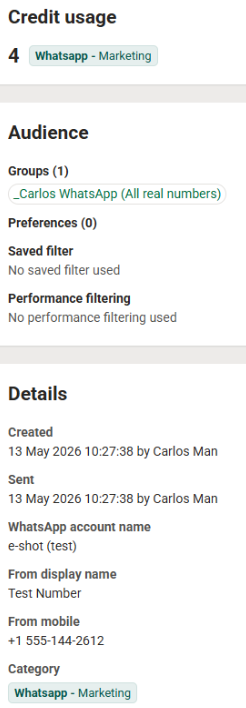
On the right-hand side, you'll find a summary of the campaign configuration, including how many credits were used, the audience it was sent to, the date and time it was sent, and any tags that were applied. This provides a useful record and audit trail, particularly if the campaign was set up or sent by a different team member.
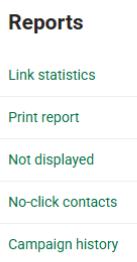
At the top, various further reports are available, including link statistics which allows you to see exactly what links were clicked in your message and who by.
Campaign history
On the right-hand side of the report, you'll find the Campaign History option. This gives you a full audit log of the campaign, including when it was created, when the design was attached, when the audience was set, and when it was sent. This is useful for internal record-keeping and accountability.
Tips for improving performance
Low delivery rate — review your contact list for invalid or inactive numbers. Contacts who don't have WhatsApp installed will always result in failed deliveries.
Low read rate — consider the timing of your send. WhatsApp messages are read on mobile devices, so sending during typical working hours or early evening often performs better.
Low button clicks — review the clarity and relevance of your call to action. A specific, action-oriented button label tends to perform better than a generic one.
High unsubscribes — this may indicate your messages aren't meeting the expectations set at sign-up, or that your sending frequency is too high. Review your preference centre options and consider whether contacts have enough control over what they receive.
You may also like these articles
Campaigns WhatsApp
How to create a WhatsApp campaign
January 1st, 2027 - Harry Thomas
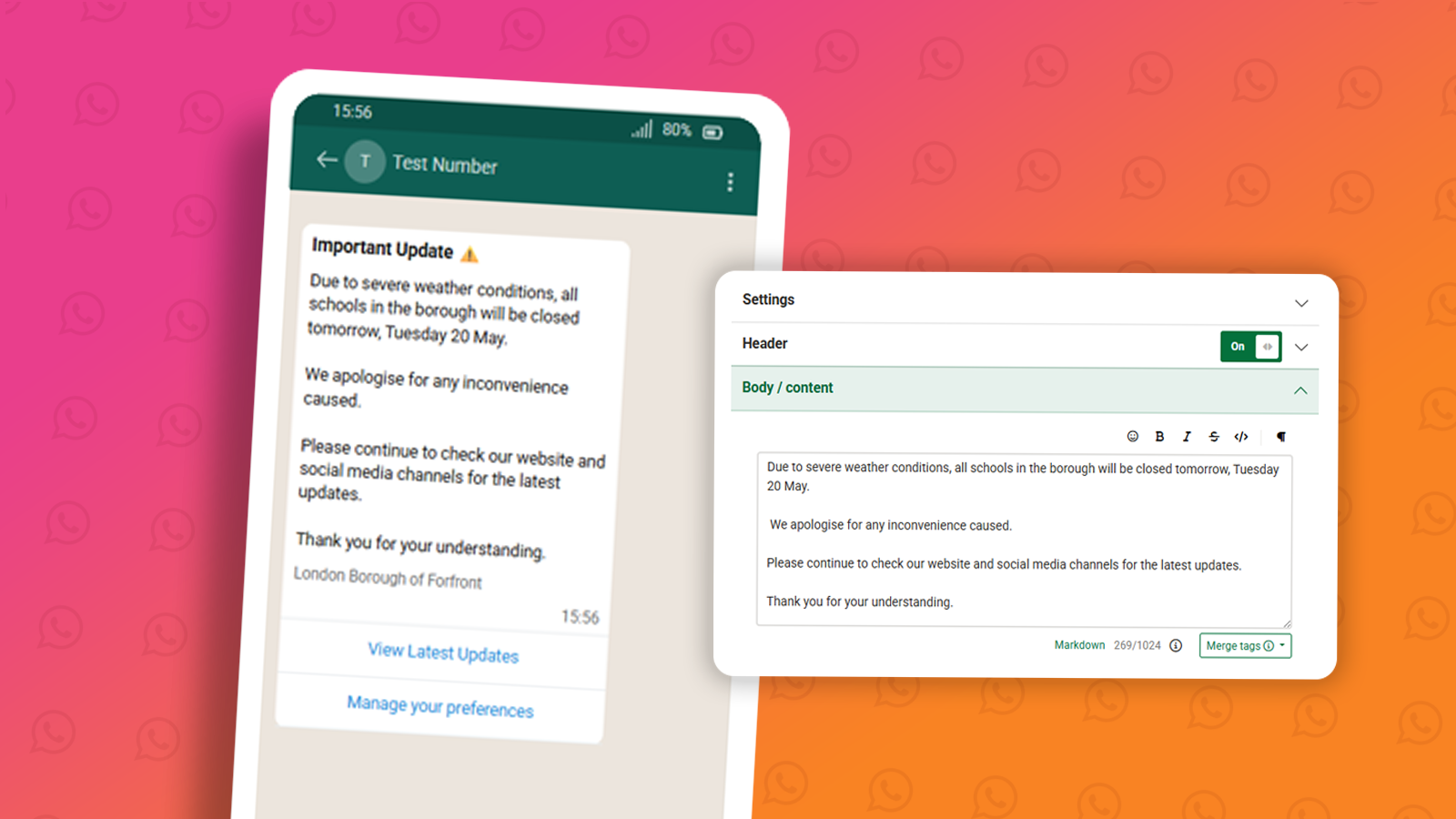
A WhatsApp campaign lets you send an approved WhatsApp design to a selected audience. Before you can send a campaign, you'll need an approved...
Designs WhatsApp
How to create a WhatsApp design
January 1st, 2027 - Harry Thomas
Designs are the message templates you send to your audience via WhatsApp. Before a design can be used in a campaign, it must be submitted to Meta...
Designs WhatsApp
Understanding WhatsApp message design statuses
January 1st, 2027 - Harry Thomas
Before you can send a WhatsApp message to your contacts, any design you create must go through a review process managed by Meta. Once submitted,...
Solutions

Email Marketing
Create email campaigns and newsletters and manage end-to-end subscription processes with forms and preferences.

Marketing Automation
Create sophisticated automated campaigns for email and SMS combined.

Digital Communication
The comprehensive solution to manage and automate your digital communication across email, SMS, websites and landing pages.

Email marketing healthcheck
We are confident that we can help you, which is why we offer a free healthcheck to identify potential issues with your current programme and free advice on things that could be done to improve it.