Blog
CATEGORY: Best practiceDesign
Why your emails are being truncated (and what you can do about it)
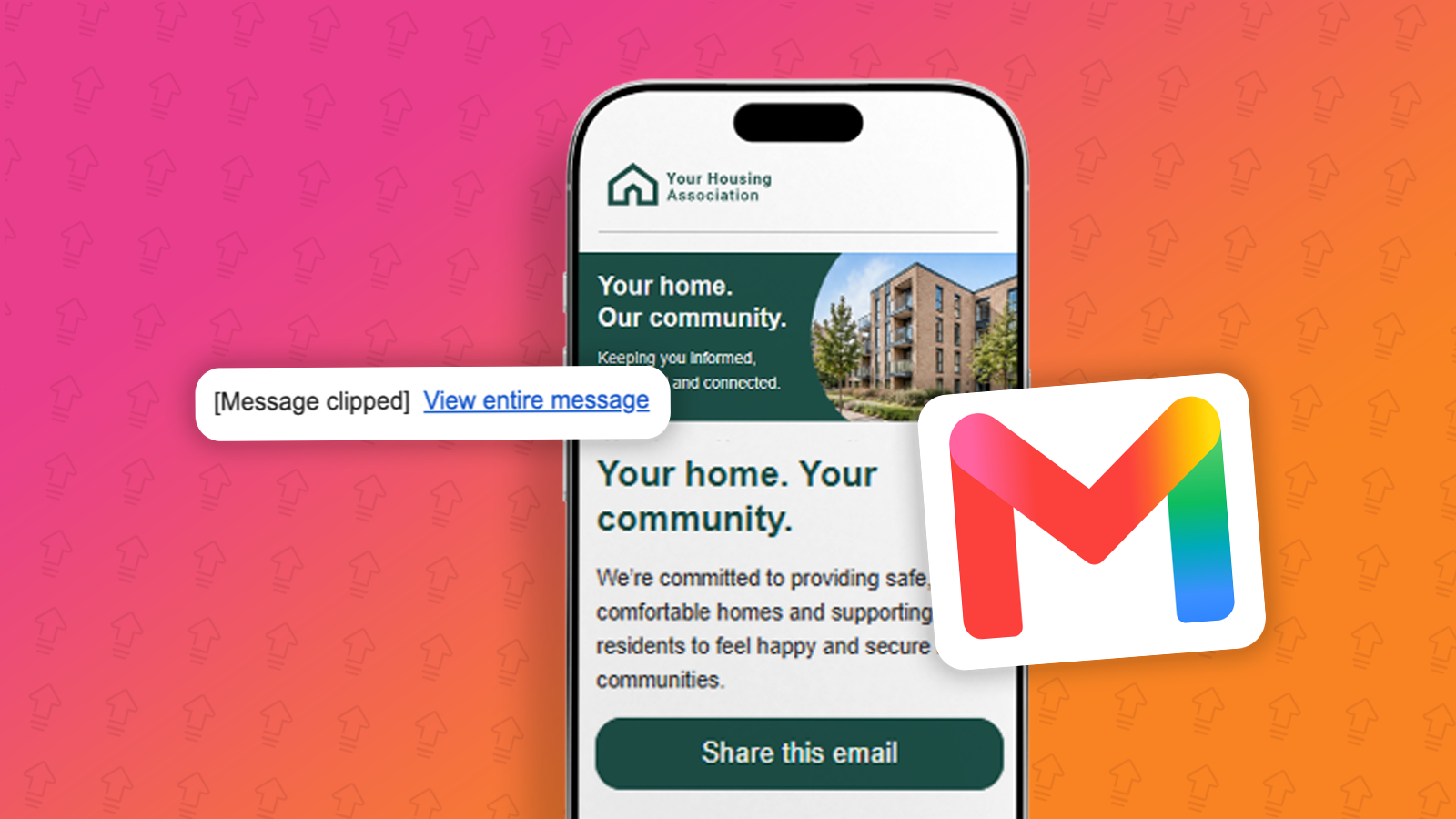
You've spent hours creating the perfect email campaign. The design looks great, the content is engaging, and your call-to-action is impossible to miss. Then, somewhere between pressing send and reaching your audience, part of the email disappears.
Instead of seeing your message in full, recipients are presented with a notice such as "Message truncated" or "[Message clipped] View entire message".
While this may seem like a minor annoyance, email truncation can have a surprisingly large impact. It can hide important content, reduce engagement rates, damage the user experience, and even create compliance concerns if important footer links are no longer visible.
What is a truncated email?
Email truncation occurs when an email client decides that a message is too large to display in full and automatically hides a portion of the content.
The email content hasn't been deleted. Instead, the receiving email application only displays part of the content and requires the reader to click a link to reveal the remainder.
For marketers and communicators, this creates an immediate problem: many recipients simply never bother viewing the rest of the email.
Why does email truncation happen?
Different email providers handle large messages in different ways, but the underlying cause is usually the same: the email exceeds a predefined threshold set by the receiving email service provider and/or application that the email is being displayed on.
Receiving Email Service Provider restrictions
Gmail app on Android is perhaps the most well-known example. If an email's HTML code exceeds 102 KB, Gmail will clip the message and display a "View entire message" link.
It is important to bare in mind that only the HTML/text code and headers count toward the 102 KB limit, not externally hosted images (which load separately).
Outlook Mobile has been reported in some cases to truncate emails that exceed 5,000 pixels in height. Although there is no official hard limit based on HTML code size.
Yahoo Mail app on Android may truncate emails that exceed approximately 256 KB. However, this is not strictly enforced, and Yahoo do not officially confirm the scenarios where it is.
Because every email provider has different rules, an email that displays perfectly in one inbox may be truncated in another.
When Gmail displays the full version of a clipped email, the formatting isn't always preserved exactly as intended.
Mobile device optimisation
Mobile apps often introduce additional restrictions to improve performance and readability.
Long, content-heavy emails can be shortened automatically to reduce loading times and prevent users from endlessly scrolling through oversized messages on smaller screens.
The real impact of email clipping
Many organisations don't realise truncation is occurring until they notice a drop in engagement. Unfortunately, the consequences can extend far beyond a few missing articles.
Your most important content may be hidden
If subscribers only see the first portion of your email, anything appearing further down the page could be missed entirely.
Even if readers are presented with a link to view the entire message, many never click it.
Compliance risks
Another big concern is compliance. Many organisations place essential legal information at the very bottom of an email, including:
Unsubscribe links
Privacy policy links
Company registration details
Physical business addresses
Unfortunately, these are often among the first elements affected by truncation.
A poorer user experience
Modern email users expect information to be quick and easy to consume.
Every extra click introduces friction. If readers have to work harder to access your content, many simply won't bother. In an increasingly competitive inbox, convenience matters.
How to prevent your emails being truncated
Fortunately, email clipping is usually avoidable with a few simple adjustments.
1. Avoid Copy + Pasting content directly from Word or PDFs
A common cause of bloated email code is copying and pasting content directly from Microsoft Word documents or PDF files.
Although the text may appear ordinary, these applications often introduce hidden formatting and unnecessary code behind the scenes. This additional markup increases the size of your email and can contribute to the amount of HTML code in your email and thus the likelihood of truncation.
Whenever possible, paste content as plain text and apply formatting within the Smart Editor directly.
2. Simplify your Design
Complex designs often result in larger amounts of HTML code.
Consider:
Reducing the number of content sections
Limiting multi-column layouts
Removing unnecessary decorative elements
Using fewer background images
Streamlining the overall structure
Cleaner, simpler emails are often easier to read and perform better across devices.
3. Be more concise
Longer emails naturally contain more content and therefore more code.
Before sending a campaign, ask yourself:
Is every section necessary?
Can any paragraphs be shortened?
Could bullet points replace lengthy explanations?
Are multiple topics being crammed into one email?
Concise emails are easier for recipients to consume and less likely to trigger truncation.
4. Split large Designs into multiple Designs and Campaign sends
If your email Designs regularly contain a large number of articles, it will be worth splitting the content articles over multiple Designs and Campaigns and sending on a more frequent basis instead of a huge Design on an infrequent basis.
At e-shot, we recommend keeping Campaign Designs to 5-10 articles or fewer. Beyond that point, engagement tends to diminish in the article content towards the bottom.
If you're unsure whether subscribers are reading all the way through your content, review your click rates on the links with e-shots Analytics > Full Report > “Click overlay report”.
If links in lower sections consistently receive very few clicks in comparison to the ones at the top - it's a strong indication that recipients simply aren't reaching that far down in the email anyway. Splitting the content across multiple sends may not only reduce truncation risk but also improve overall engagement.
Conclusion: Keep your emails short, simple and fully visible
Email truncation happens when an email client hides part of your message because it’s too large. Gmail is the most common cause: it clips any email with more than 102 KB of HTML code and replaces the rest with a “View entire message” link. Other apps, such as Outlook Mobile and Yahoo Mail, may also shorten long or content-heavy emails.
Clipping matters because most readers won’t click to see the rest. That means your key content, calls to action, and even your unsubscribe and privacy links could go unseen. This can lower engagement and create compliance risks.
The good news is that you can usually prevent email truncation with a few simple habits:
Paste content as plain text rather than copying from Word or PDFs, which add hidden code.
Keep your design simple, with fewer sections, columns and background images.
Write concisely and remove anything that isn’t essential.
Keep each Campaign Design to 5–10 articles, and split larger newsletters into more frequent sends.
To check whether your audience is reading to the end, review your click data in e-shot’s Analytics > Full Report > “Click overlay report”. If links further down get far fewer clicks, it’s a sign your emails are too long.
By keeping your emails lean and focused, you’ll reduce the risk of clipping, protect your compliance links, and give your subscribers a better reading experience on every device.
You may also like these blogs
How to improve internal comms engagement: 9 practical ideas
October 22nd, 2026 - Stephanie Richardson
To improve internal comms engagement, treat your staff like any other audience you need to reach. There are 9 practical ways to do it. Start with...
Better resident communication and closing the loop
October 19th, 2026 - Stephanie Richardson
How can social landlords reach more residents and evidence engagement? Social landlords can reach more residents by using the channels people...
Is it time to jump on the WhatsApp Channel bandwagon? A 2026 Reality Check
September 28th, 2026 - Dan Hare
Or should we remember Meta's previous form? WhatsApp Channels launched globally in September 2023 as a one-way broadcast tool inside the...
Solutions

Email Marketing
Create email campaigns and newsletters and manage end-to-end subscription processes with forms and preferences.

Marketing Automation
Create sophisticated automated campaigns for email and SMS combined.

Digital Communication
The comprehensive solution to manage and automate your digital communication across email, SMS, websites and landing pages.

Email marketing healthcheck
We are confident that we can help you, which is why we offer a free healthcheck to identify potential issues with your current programme and free advice on things that could be done to improve it.