Help articles
CATEGORY: Feature UpdatesFAQs
New e-shot login process
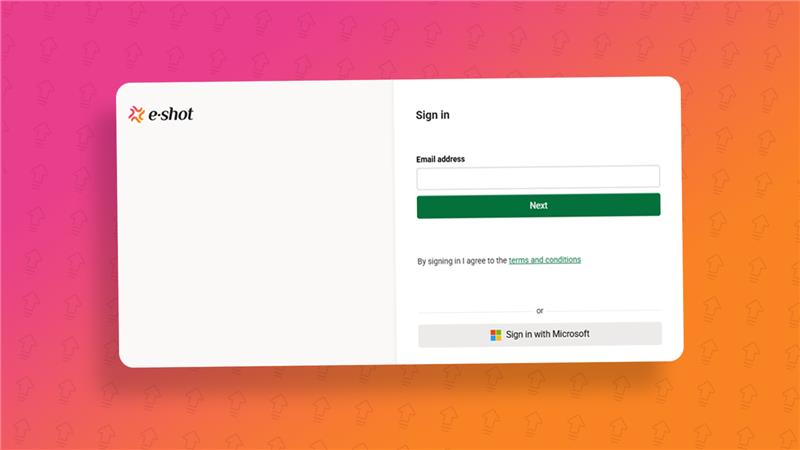
From Friday 17th October, the way you login to e-shot will change. The process will now involve two steps for those customers using MFA to login. For customers using Sign in via Microsoft, the process will not change, but the login screen will look different.
This is how the new login screen will look:
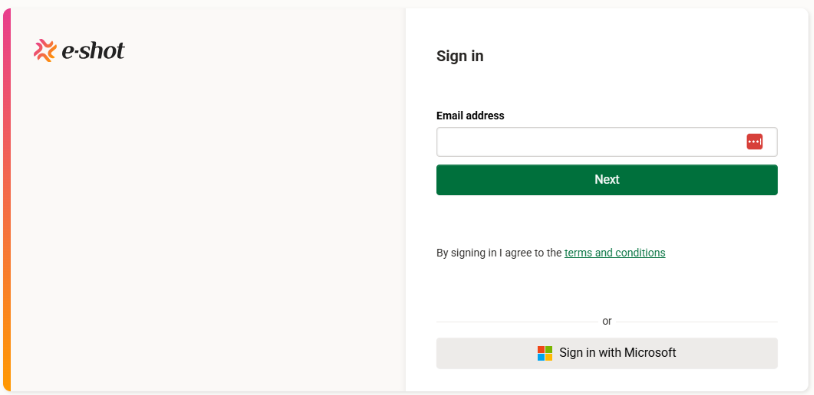
Please note:
Your login credentials (email and password) will remain the same. There is no need to update or reset these.
If you login using Microsoft (SSO), you can continue to do using the ‘Sign in via Microsoft’ button.
Why are we making this change?
These changes are part of our ongoing commitment to keeping your information secure while making it simpler for you to sign in.
To keep your account safer and provide a smoother experience, we’re introducing a new, more secure login process. This update allows us to adapt security to each user, better protect against unauthorised access, and make future features like passwordless login easier to support.
Ways to login and how they work
Sign in with Microsoft (SSO)
On the login page, click the ‘Sign in with Microsoft’ button.
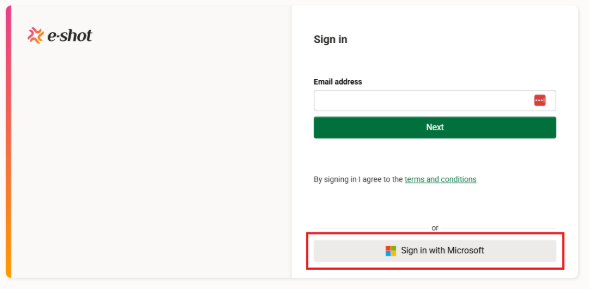
From here you will either be asked to login using your Microsoft account or in some cases you will automatically be logged in.
Please note like before the Microsoft email used needs to be present in the e-shot account. Microsoft and e-shot will verify this is the case before logging you in.
Sign in with MFA
On the first page enter your e-shot user email address.
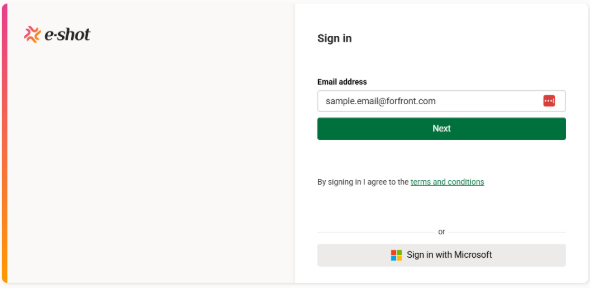
Click ‘Next’ and on the next page enter your e-shot password.
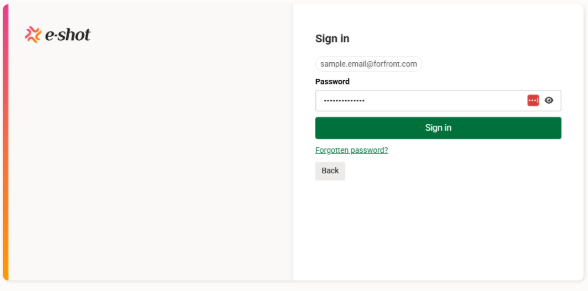
Click the ‘Sign in’ button.
Upon doing so, you will either be logged in, if you have recently verified your account with MFA. If you haven't or are logging in via a new device or browser, you will be asked to enter your MFA verification code as seen below.
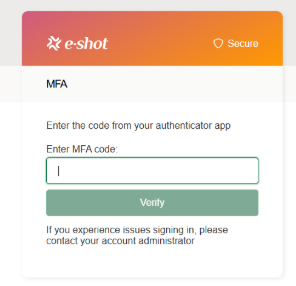
Note the code will still be generated the same way you set it up before either via your authenticator app or SMS.
Enter you MFA code and click ‘Verify’. Upon doing so, you will be logged in.
Signing in via Passkeys
For details on how to setup passkeys and logging, please refer to our dedicated article here.
Please note if you already use SSO or MFA and setup a passkey, with SSO, the Microsoft verification will be skipped whereas with MFA you will still need to enter your MFA code as per the MFA explanation above.
Subaccounts
Note if you are a user who has access to multiple subaccounts, upon login in using any of the above methods, you will be asked which subaccount you wish to login to.
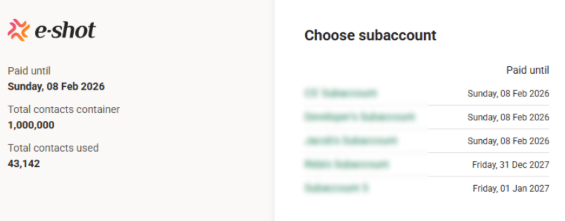
After choosing your subaccount or if you only have access to one subaccount, you will be taken to the e-shot dashboard for that subaccount.
You may also like these articles
Feature Updates
e-shot feature update – October 2025
October 17th, 2025 - Harry Thomas
The latest e-shot release is here! On Thursday 16th October, we released a product update. This release saw a few enhancements to the platform...
.png)
Campaigns Settings Designs
Social share
July 25th, 2025 - Harry Thomas
e-shot’s social share feature helps your subscribers to share your emails with their networks and helps you gain new subscribers from those shared...
Best practice Public Sector
5 Practical steps to build your email newsletter audience
July 15th, 2025 - Harry Thomas
If you're responsible for communications in a local authority or other public sector organisation, you already know that email newsletters are...
Solutions

Email Marketing
Create email campaigns and newsletters and manage end-to-end subscription processes with forms and preferences.

Marketing Automation
Create sophisticated automated campaigns for email and SMS combined.

Digital Communication
The comprehensive solution to manage and automate your digital communication across email, SMS, websites and landing pages.

Email marketing healthcheck
We are confident that we can help you, which is why we offer a free healthcheck to identify potential issues with your current programme and free advice on things that could be done to improve it.