Help articles
CATEGORY: CampaignsSettingsDesigns
Social share
.png)
e-shot’s social share feature helps your subscribers to share your emails with their networks and helps you gain new subscribers from those shared campaigns.
Social share uses the native share options of the device that the email is being viewed on to make it simple for subscribers to share with those who they communicate with most often, via the channels they use most frequently.
We've made it simple for their network to subscribe to your future comms, bringing you new subscribers, keeping your email lists healthy and engaged.
In this help document we will run through how to setup social share and how your contacts can share your campaigns.
Adding the social share link into your e-shot design
Adding the social share link into your designs is simple and uses a merge tag so you never have to update it again.
The merge tag you need to use is socialshareurl
Remember this merge tag needs to go in as a link behind hyperlinked text or a call-to-action button. From the links dropdown the social share merge tag is already available for ease, as seen below in screenshot.
-1753373421.png)
We recommend adding the social share links either in the header or footer of your emails unless there is a reason to do otherwise. In my demo design below, it has been placed inside a button in my email's header.
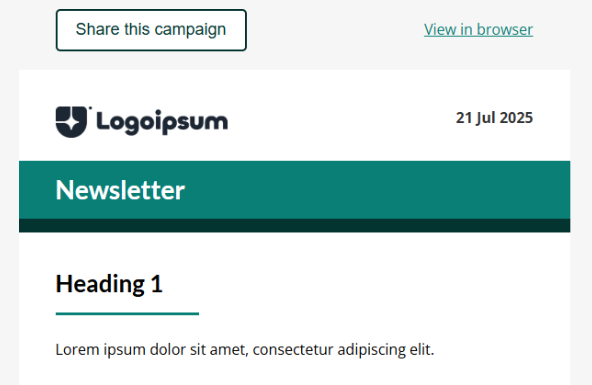
Once you have inserted the merge tag into your design and are happy, you are good to go!
Adding a landing page (sign up form) to your social share link
From the Settings > Account settings > Email preferences page. Admins on an account can set a landing page (sign up form) they wish to add to the social share link.
*Note this isn't required and should only be set if you wish for contacts to be able to sign up if they have been shared your campaign.
Once on this page on the right-hand side you will find ‘Sharing tools.
-1753373090.png)
On this page, make sure the toggle is enabled for the social sharing link to work. If you wish to set a landing page, simply use the dropdown menu to choose the landing page you wish to use on the social share link.
.png)
Once you’ve selected the landing page, it will let you know it has been saved. Your social share is now ready to be used.
.png)
Sending a campaign when social share is enabled
When social share is enabled, sending a campaign remains fundamentally the same. Once the campaign has been sent/scheduled you will find one small difference.
See below, I have sent my campaign and now the pop up received lets me know it has been sent but also provides the e-shot user with an option to copy the campaign link.
The link is like the preview link but automatically opens the social share box upon clicking. This link is handy for if you the user wish to share the campaign.
-1753372689.png)
How contacts see and use the social share tool
Once the campaign has been sent, contacts will be able to use the social share link wherever you previously chose to add it. See below my design from before.
.png)
Upon clicking this button, the email will open in browser with the share options as seen below.
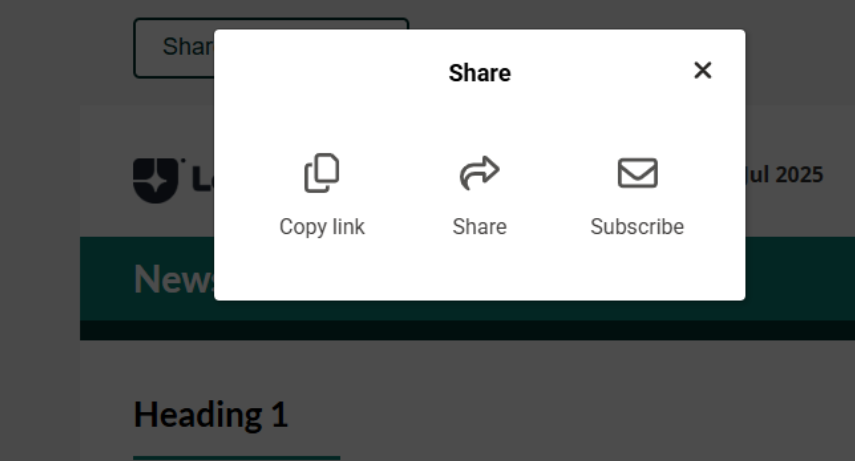
What do these options do?
Copy link: Copies the browser link to your clipboard for if you wish to share the campaign via a link.
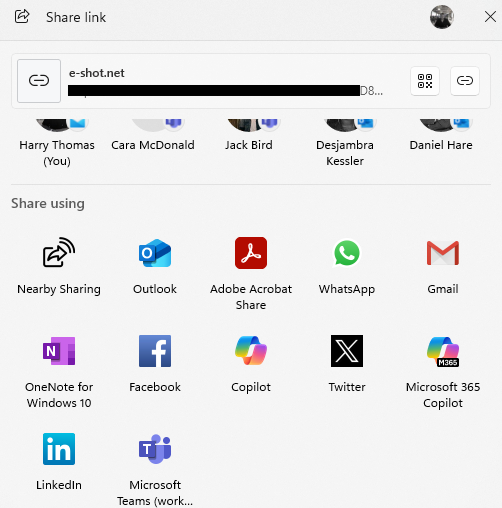
Share: This will bring up a device pop up that will provide with different methods to share the campaign. Options will vary from contact to contact depending on the device used and which apps they regularly use or who they regularly message. See below an example on a work PC.
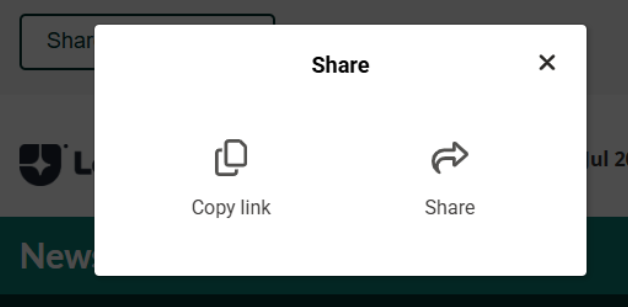
Subscribe: As covered above, if a landing page has been selected for a social sharing, then the subscribe option will show. Upon clicking this, it brings up the landing page you selected for anyone to sign up who has been shared the campaign. The sign-up process works the exact same as usual with double opt in and welcome emails if set.
.png)
If no landing page is chosen, the subscribe option will simply not show.
Social share analytics
Currently the analytics on social share is the same as any other link and clicks to it can be viewed via the link statistics report as seen below. Like other links you can click into the contacts to see exactly who has clicked on the share link.
The link your social share clicks get tracked to is labelled as 'Share in browser' as seen below.
.png)
We hope to expand on the analytics available in a coming release and will update this document if any changes are made.
You may also like these articles
Designs CRM
Adding personalisation, custom fields information and other useful *variables* to your email message
November 12th, 2020 - Sadie Burgess
e-shot allows users to add dynamic personalisation into your emails, this includes the actual email content or your subject line and preview...

help-articles Designs
Smart Editor: Let’s get social
March 9th, 2021 - Sadie Burgess
Social media is integral to many people’s lives and a place where your customers are likely to engage with your brand – so let’s make it easy for...
help-articles Designs
Smart Editor: How to insert *variable* links in your design
January 26th, 2021 - Sadie Burgess
You can add special links such as Unsubscribe or View in browser to emails created in Smart editor, i.e. *UnsubscribeURL* and *MyEshotURL*...
Solutions

Email Marketing
Create email campaigns and newsletters and manage end-to-end subscription processes with forms and preferences.

Marketing Automation
Create sophisticated automated campaigns for email and SMS combined.

Digital Communication
The comprehensive solution to manage and automate your digital communication across email, SMS, websites and landing pages.

Email marketing healthcheck
We are confident that we can help you, which is why we offer a free healthcheck to identify potential issues with your current programme and free advice on things that could be done to improve it.