Help articles
CATEGORY: Campaigns
Automation Examples: Event reminders
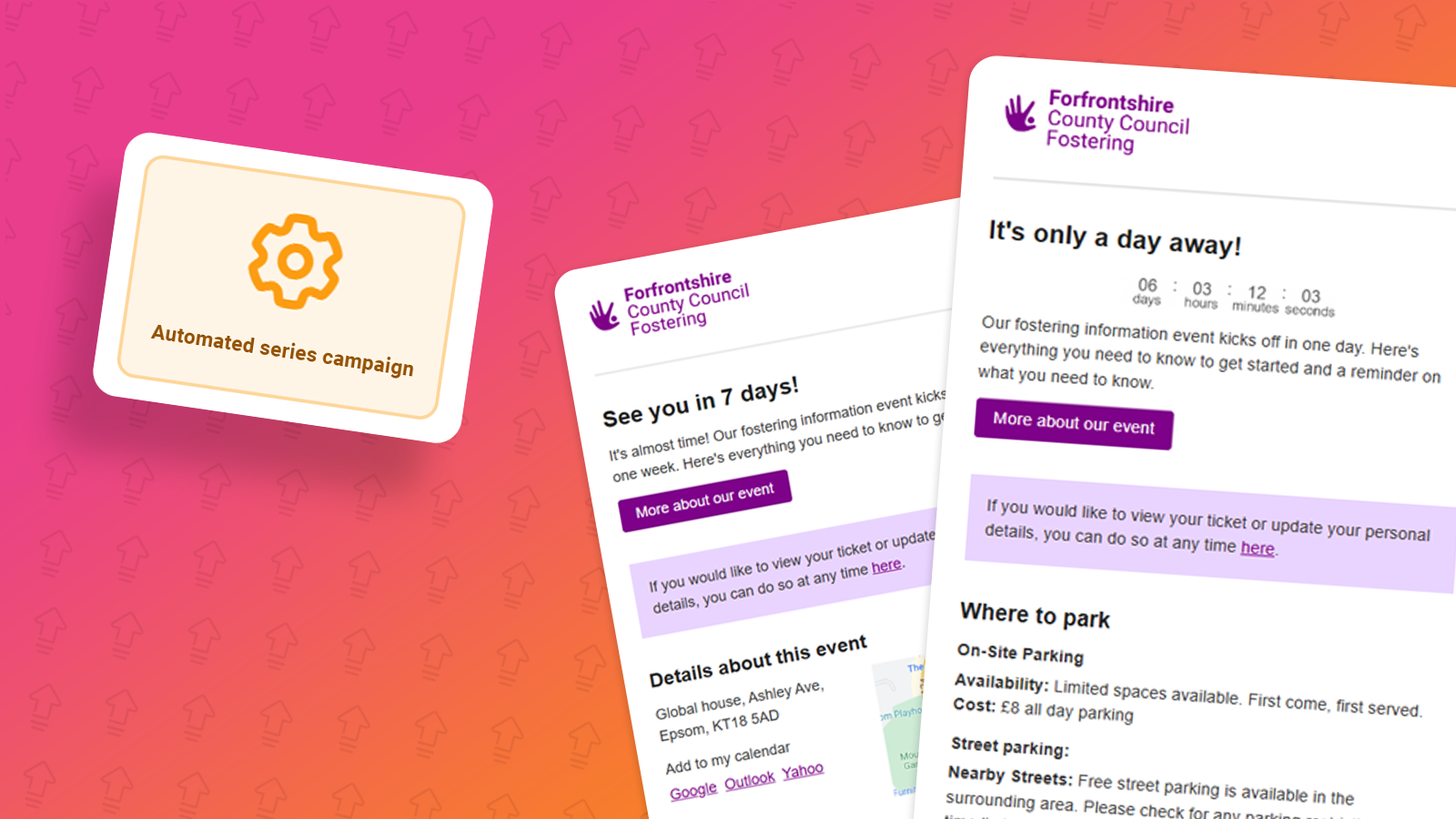
Automated Series can be used to cater for all kinds of triggered campaigns, from welcome emails when recipient's sign-up, and more, in this help document we’re going to create an event series, that reminds those that have registered about the event and provides more information.
In our scenario we will send our contacts a campaign 3 days before the event, but if there is less than 3 days a campaign won’t be sent.
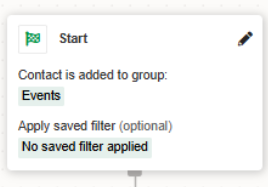
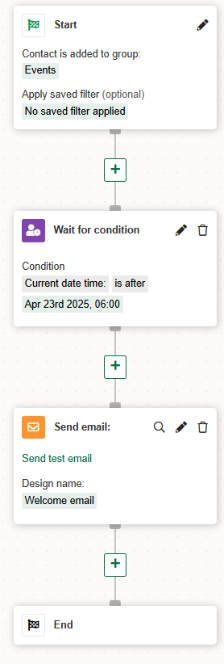
First things first, we need to set the start group for the series. The group chosen here should be the group contacts are being added into after signing up to your event. This is the group that starts the series.
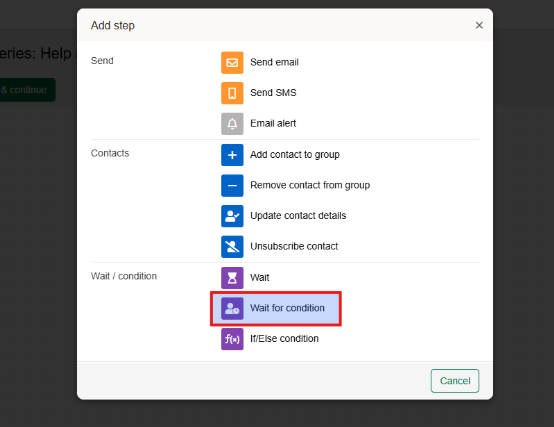
The step that we have selected for this series is the” wait for condition” this allows us to add a condition to wait until a certain date and time.
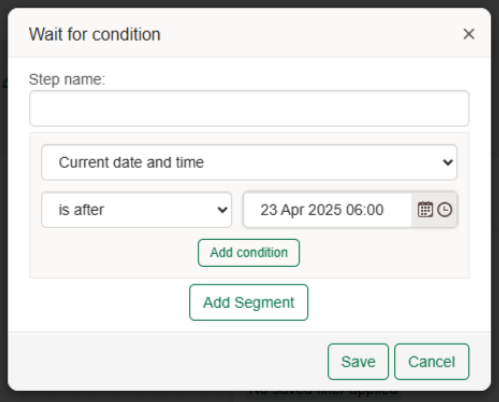
This step allows you to wait for any date/time and the series will wait until the specified date before continuing with the next steps.
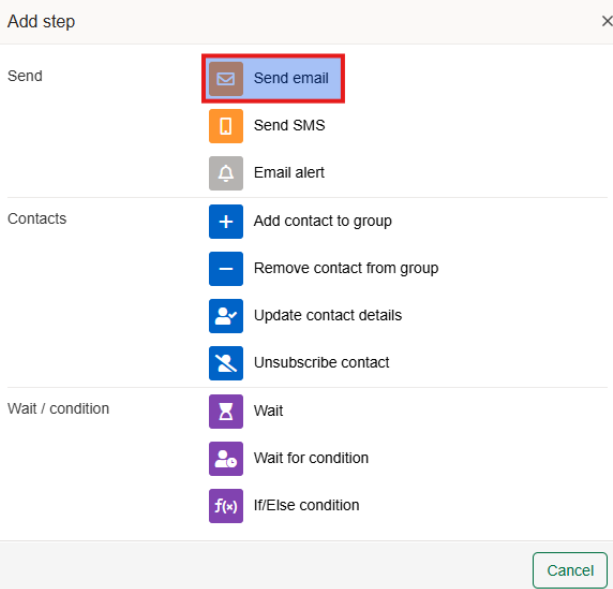
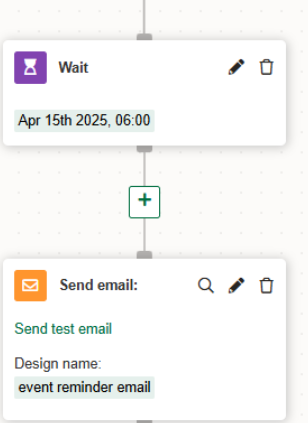
After hitting our desired wait for date. The next block that we would need to add is the “send email” this block allows for designs to be selected and the campaign to be sent to your contacts in the series.
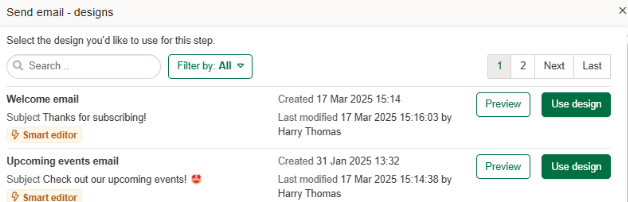
Once you have selected the “send email” block, you will then need to select the design you would like to send to your contacts from the designs already created in your account.
When you have selected your design, the last step of this Automated series is complete, and should look much like this one.
Another way in which you can do this and achieve the same result is by using an If/Else condition step, this allows for you to have a True or False stream, which can be used to send a reminder email to your recipients and attendees,
To use an if statement within your automated series you would need to put this in place of the wait statement.
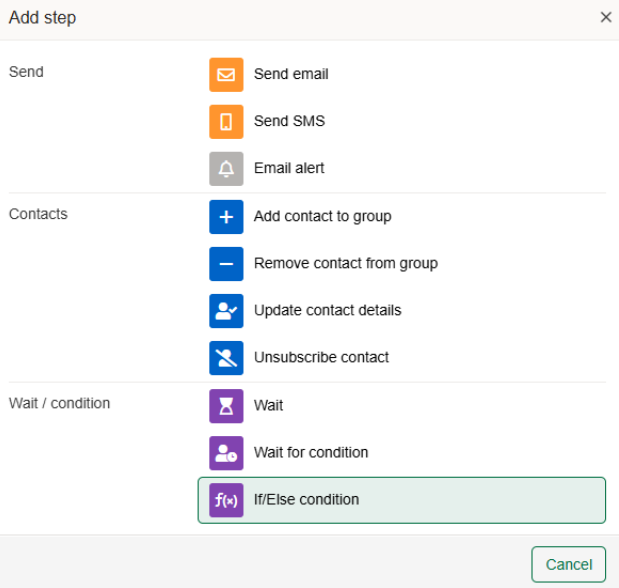
Once you have selected the If/Else condition, you can then select the date condition, when you add the condition, your automated series should look much like this.
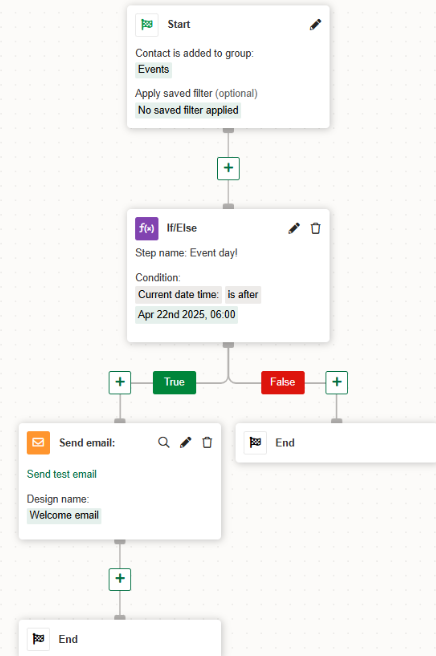
The If/Else step allows you to split your series down two routes and is a great way to perform different actions depending on other outcomes if this is desired.
We can then add the false stream, in this steam we will be adding an event reminder email, and the welcome email.
The first thing that we would need to add is a wait for statement, so that we can have the reminder email send a week before the event.
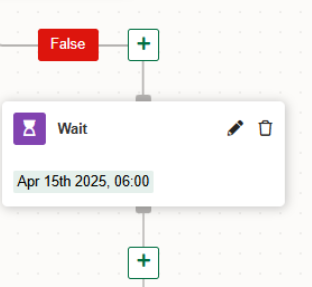
When we hit our wait for date, we can send our event reminder email.
A completed series using the If/else statement may look like the below.
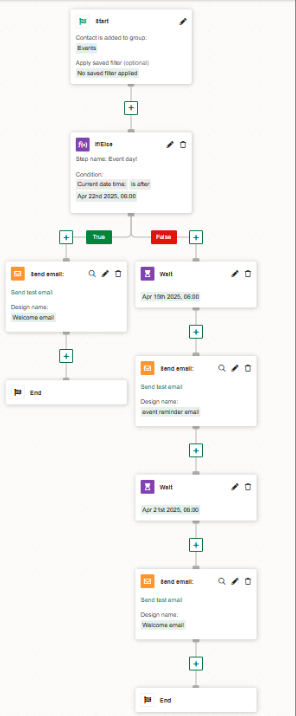
Please note, this series is a simple event reminder and you can add steps as desired.
If you're interested in building your own series. Our walkthrough help document can be found here.
You may also like these articles
Campaigns
Campaigns: Automated Series campaign
March 24th, 2025 - Harry Thomas
The Automated Series campaign allows you to set a series of steps which will automatically do the work for you, once it’s been activated. Common...
Campaigns Analytics
Understanding a contact's progress through an Automated Series
March 24th, 2025 - Harry Thomas
In this article we will be looking at Automated Series campaigns and how you can view the contacts progress through your series’ steps as well as...
Campaigns
Automation Examples: New contact sign-up
May 23rd, 2025 - Harry Thomas
Automated Series can be used to cater for all kinds of triggered campaigns, from welcome emails when recipient's sign-up, and more, in this...
Solutions

Email Marketing
Create email campaigns and newsletters and manage end-to-end subscription processes with forms and preferences.

Marketing Automation
Create sophisticated automated campaigns for email and SMS combined.

Digital Communication
The comprehensive solution to manage and automate your digital communication across email, SMS, websites and landing pages.

Email marketing healthcheck
We are confident that we can help you, which is why we offer a free healthcheck to identify potential issues with your current programme and free advice on things that could be done to improve it.