Help articles
CATEGORY: CampaignsAnalytics
Understanding a contact's progress through an Automated Series
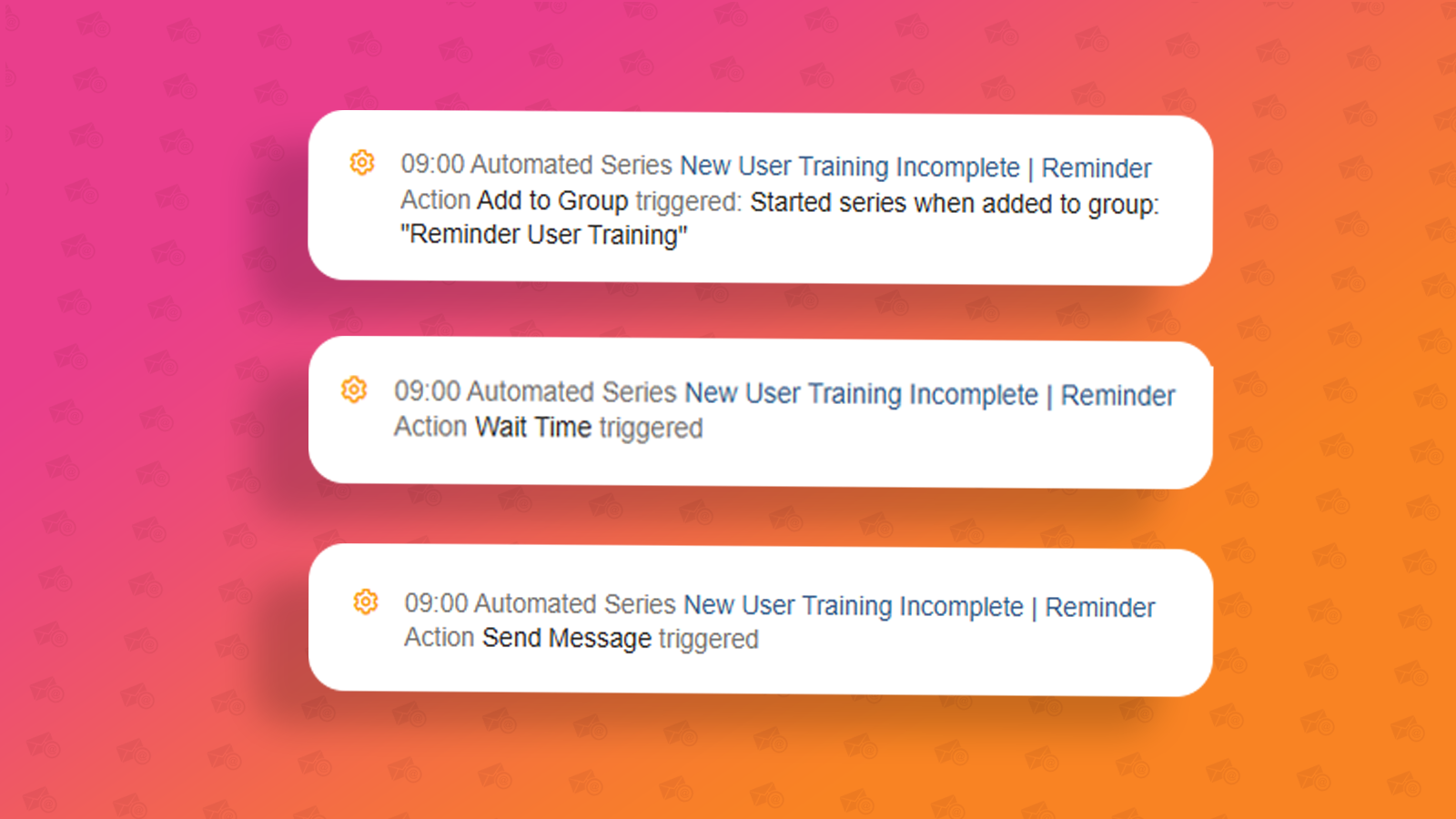
In this article we will be looking at Automated Series campaigns and how you can view the contacts progress through your series’ steps as well as the analytics for your campaign. If you are interested in setting up an Automated Series campaign, find out help article here.
Who has gone through each step in the series?
To view how many contacts that have gone through each step in your series, you can go back into the series. Click the Actions dropdown next to the campaign and choose ‘View Automated Series’.
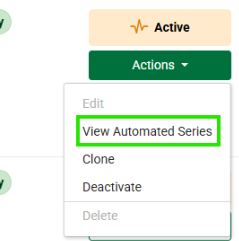
This will take you into the series where you’ll see every single step you previously setup.
See below the first two steps in my series.
Start: The contacts who have been added to the start group
Send email: The first email sends after being added to the group
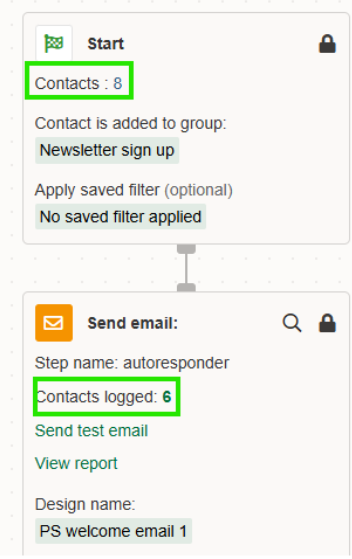
As you can see from the example, there’s 8 contacts that have been found in the start group and 6 contacts have been sent the welcome email.
The difference of 2 could be because:
2 contacts were already in the group when the series was set live (using new contacts only) meaning those 2 contacts would not have been sent to.
The 2 contacts have recently signed up and so the first email step has not yet been processed.
*Please note: The above steps are just as an example; you will be able to see the contacts logged for every single step in your series.
If you wish to delve deeper into who those contacts are, you can click on the ‘6’ for example to see which 6 contacts have been passed through that step. Doing so will provide you with a list of the contacts emails. Note if contacts have since been deleted the number will remain the same but when clicked into less contacts will be shown.
Viewing a contacts activity and progress
Any contacts in your CRM or if you are viewing contacts that have passed through a step in your series, you can view each contacts activity and progress individually on their contact record.
To do this click into a contact's email address to bring up their contact record. On the right-hand side of this page, you will find the ‘Activity’ panel. Here you can see the date, time, automated series name and step name as well as link to view the email sent, to refresh your memory. See example below.
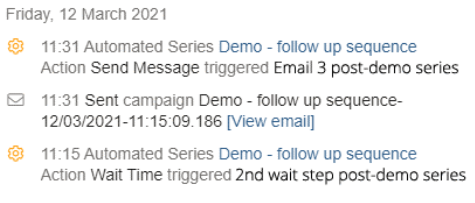
*Please note: The activity panel displays all the contacts activity so this will likely include other actions not related to the Automated Series such as a single send campaign they have been sent/clicked.
Viewing your campaigns analytics
If you are after the overall analytics for your campaign and not a contact-by-contact report. You can view the campaigns performance in the Analytics > Email reports section of e-shot.
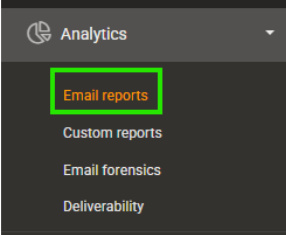
From here you will see a list of all campaigns sent out of your e-shot account from newest to oldest. If your Automated Series campaign has not recently sent an email it may not show at the top of the list.
In your reports, you will see the below.
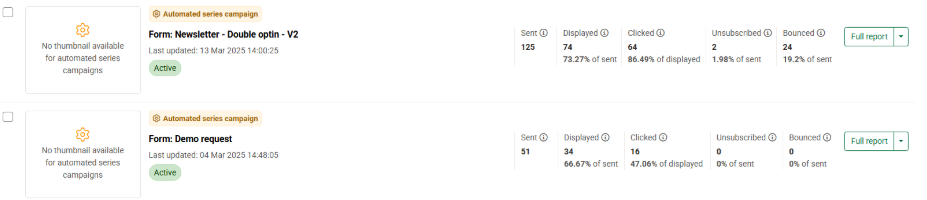
It’s like a Single Send campaign; you can see how many contacts have been sent in that series. You can also see the number of displays, clicks, unsubscribes and bounces it has also had.
To view in more detail each email send in your series click the ‘Full report’ button.
Here you will see the below.
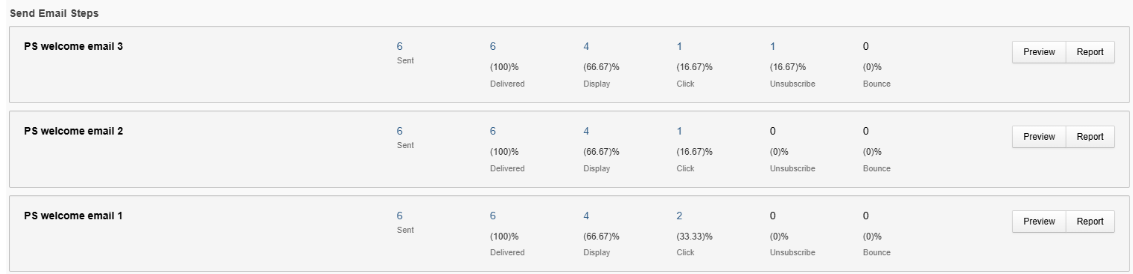
For each email send step in your series you will see an individual stat for each. You can use the ‘Report’ button to view an even more detailed report for each send step.
*Note you can only view these types of analytics for email or SMS send steps in your series as that is what e-shot can track. If you would like to see how many people have been passed through other steps such as a wait step, please refer to the first section in this article ("Who has gone through each step in the series?").
You may also like these articles
Campaigns
Campaigns: Automated Series campaign
March 24th, 2025 - Harry Thomas
The Automated Series campaign allows you to set a series of steps which will automatically do the work for you, once it’s been activated. Common...

email-marketing Automation
3 reasons you should be using email automation
May 25th, 2017 -
“Email Automation” has become a buzzword for 2017. If you’re a business owner and you are actively searching to increase the efficiency of your...
Solutions

Email Marketing
Create email campaigns and newsletters and manage end-to-end subscription processes with forms and preferences.

Marketing Automation
Create sophisticated automated campaigns for email and SMS combined.

Digital Communication
The comprehensive solution to manage and automate your digital communication across email, SMS, websites and landing pages.

Email marketing healthcheck
We are confident that we can help you, which is why we offer a free healthcheck to identify potential issues with your current programme and free advice on things that could be done to improve it.