Help articles
CATEGORY: WhatsApp
Setting up a Meta Business Profile
Before you can connect and use WhatsApp within e-shot, you'll need a Meta Business profile. This sits on top of Meta Business Suite and acts as the central hub for your business's pages, ad accounts and messaging permissions.
Setup takes 10–15 minutes if you're starting from scratch, or just 2–3 minutes if you already have a Facebook Business Page.
What you'll need
A personal Facebook account (Meta Business Suite doesn't offer a business-only login).
Your business name, email address and contact details.
A logo and cover image (optional but recommended).
Create a business portfolio
To create a business portfolio for your organisation:
Go to business.facebook.com and log in using your Facebook profile or managed Meta account.
Click the drop-down menu above Home in the top left.
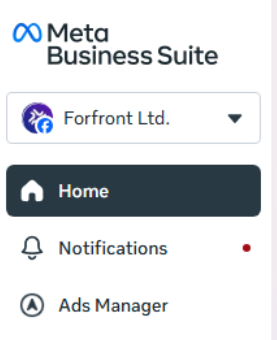
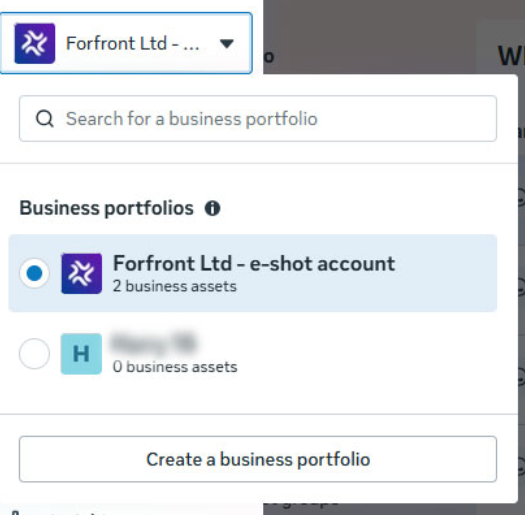
Click Create a business portfolio.
Enter a name for the business portfolio. This should match the public name of your business or organisation because it will be visible across Meta. The name of your business portfolio cannot contain special characters.
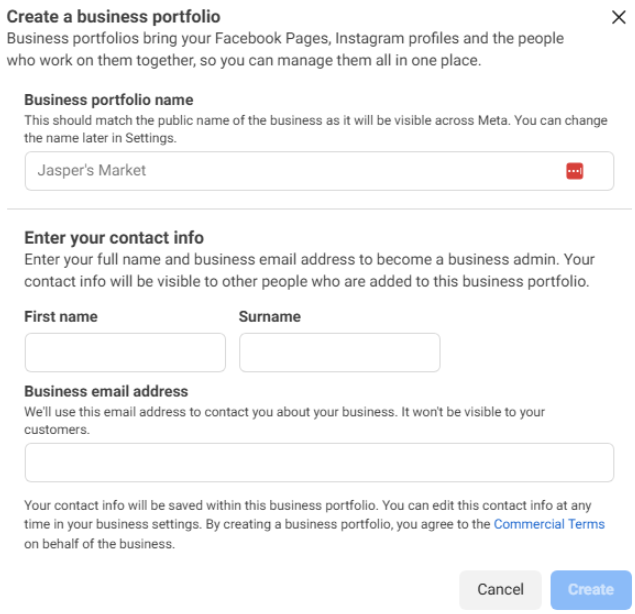
If you’re logged in to business.facebook.com with your Facebook profile, then you need to enter your first name and surname and your business email address. Meta will use this email address to contact you about your business. It won't be visible to anyone else.
If you’re logged in with a managed Meta account, then you don’t need to do this.
Click 'Create'. If you’re creating a business portfolio using your Facebook profile, then you’ll get an email asking you to confirm your business email address.
After creating a business portfolio
After you’ve created your business portfolio, you get full control of it and you can add business assets, such as:
A Facebook Page
An Instagram account
A WhatsApp account
Business assets can only belong to one business portfolio.
You can also add people in your organisation to join your business portfolio so they can also manage it via their own Facebook account.
Linking a WhatsApp account
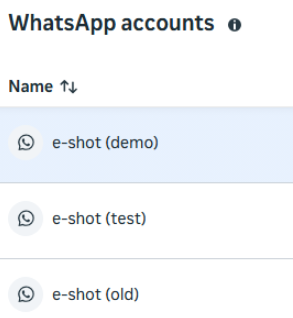
Once logged into your Meta Business Profile, head to Settings in the bottom left, then visit WhatsApp accounts. Here you'll be able to link an existing WhatsApp account or set one up so you can connect it to e-shot and start sending WhatsApp messages out.
You'll be able to see if any WhatsApp accounts are already linked.
But if you need to add one for the first time or a new account, Click Add in the top right. Where you'll be prompted to either link an existing WhatsApp account or create a new one.
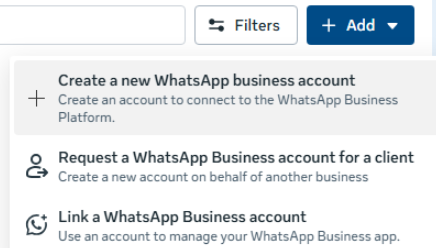
For the full details on adding a WhatsApp guide to your Business Suite, please see Meta's guide here.
Linking to e-shot
Once your Meta Business profile is set up, and a WhatsApp Business account has been linked within the same portfolio, you can now connect to e-shot's and start using WhatsApp messaging.
To connect to e-shot heading to Settings > Account settings > Mobile preferences.
Note: This section is only available to e-shot admin users on the e-shot Pro package and above.
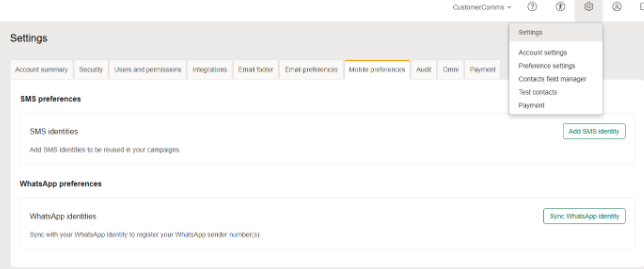
Use the Sync WhatsApp identity button where you'll be asked to login to Meta to verify you wish to link that account to e-shot.
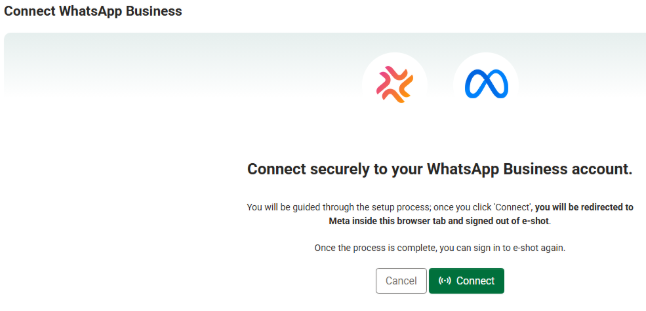
Once you click ‘Connect’, you’ll be asked to login to your Meta Business account and verify the connection between that and e-shot. Once complete, you’ll be returned to e-shot.
As shown below, the chosen account to be linked will become available.
Note: You still may need to wait some time before sending messages whilst the connection/status changes to ‘Connected’

Once connected, you may begin sending WhatsApp messages. For our full list of WhatsApp guides, please refer to our website.
You may also like these articles
Campaigns WhatsApp
How to create a WhatsApp campaign
January 1st, 2027 - Harry Thomas
A WhatsApp campaign lets you send an approved WhatsApp design to a selected audience. Before you can send a campaign, you'll need an approved...
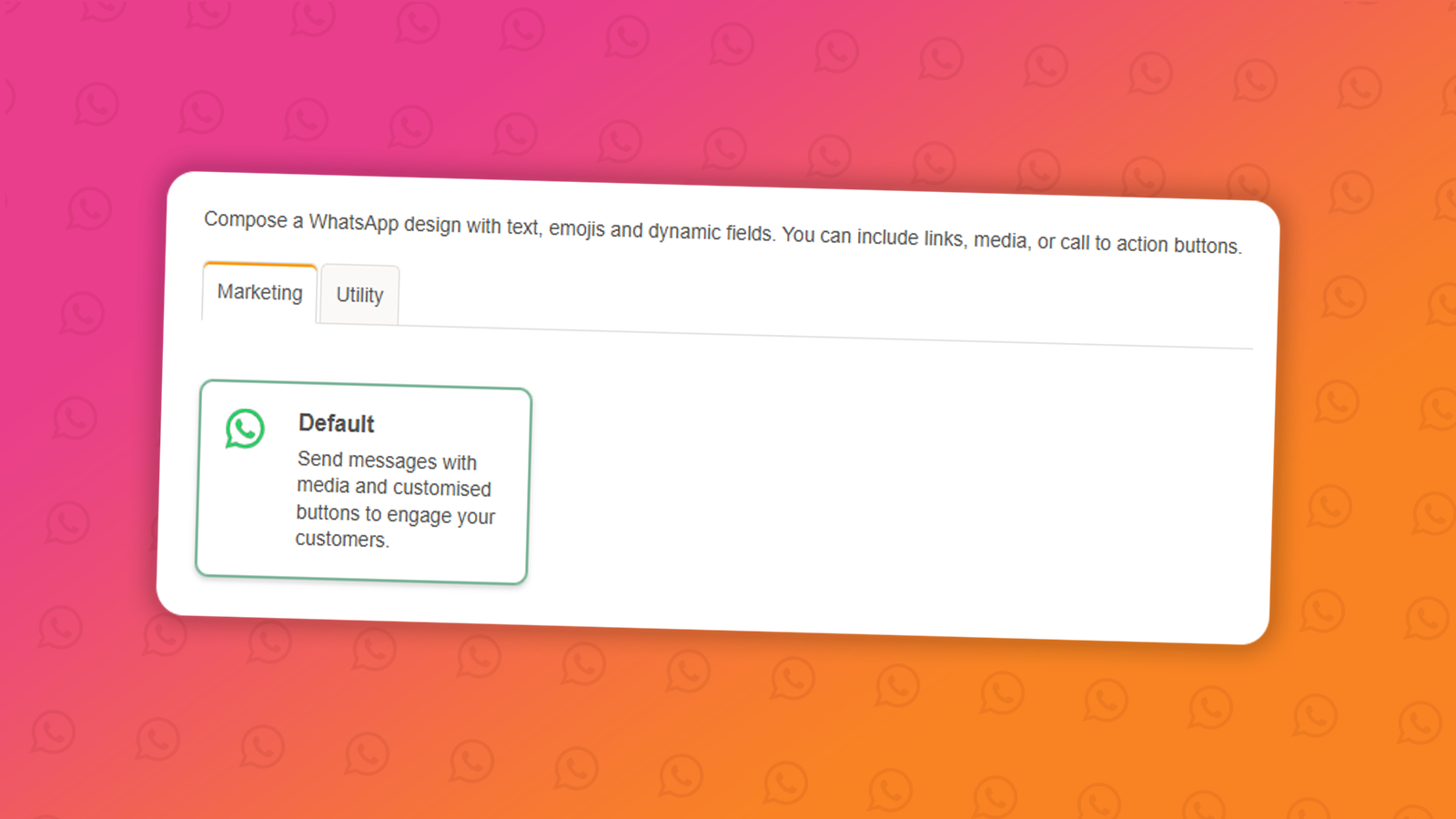
Designs FAQs WhatsApp
WhatsApp Marketing vs Utility messages
January 1st, 2027 - Harry Thomas
When creating a new WhatsApp message design, you'll be asked to choose a message type: Marketing or Utility. Choosing the right one is...
Designs WhatsApp
Understanding WhatsApp message design statuses
January 1st, 2027 - Harry Thomas
Before you can send a WhatsApp message to your contacts, any design you create must go through a review process managed by Meta. Once submitted,...
Solutions

Email Marketing
Create email campaigns and newsletters and manage end-to-end subscription processes with forms and preferences.

Marketing Automation
Create sophisticated automated campaigns for email and SMS combined.

Digital Communication
The comprehensive solution to manage and automate your digital communication across email, SMS, websites and landing pages.

Email marketing healthcheck
We are confident that we can help you, which is why we offer a free healthcheck to identify potential issues with your current programme and free advice on things that could be done to improve it.