Help articles
CATEGORY: DesignsFAQsAnalyticsCampaigns
Email Forensics
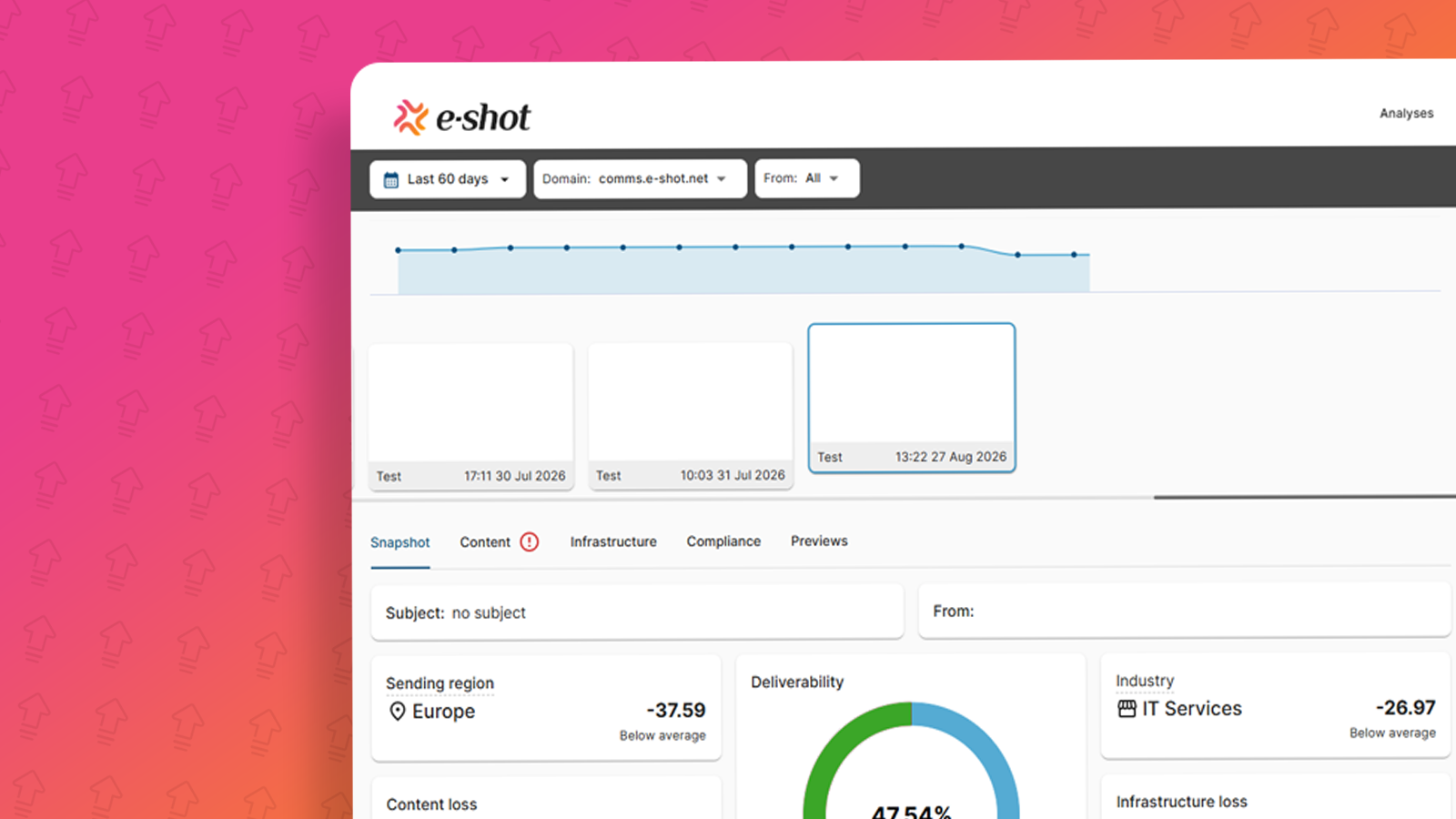
Email Forensics helps you get more of your emails into the inbox. It checks your emails and campaigns before and after you send them, then shows you what to fix.
Use it to spot problems with your content or sending set-up early, preview your email across devices, and keep an eye on your sender reputation.
What Email Forensics provides
Email Forensics gives you:
A deliverability score – see how likely your email is to reach the inbox, before and after you send.
Delivery statistics – review how your campaigns performed once they've gone out.
Content suggestions – find out how to improve your wording, coding and links.
Infrastructure checks – see whether your sending set-up, such as your domain and authentication records, is helping or hurting delivery.
Email client previews – see how your email looks in popular email clients and devices, including dark mode.
How to access Email Forensics
You can open Email Forensics in two ways, depending on what you want to check.
From the main menu
Select Email Forensics in the menu on the left, beneath Analytics. This shows your full test sends (From a campaign) and any campaign sent from your account. The view is filtered by subaccount.
Full test sends can only be done on a campaign.
From the Reports page (after you send)
Use this to review a campaign that has already gone out.
Go to the Reports page.
Click the actions dropdown for your campaign and select Email Forensics Report.
This takes you straight to the snapshot for that campaign.
Reading your report
When Email Forensics opens, you'll see a carousel of your messages. Select a message to see a snapshot of its deliverability.
Filter what you see
Use the bar at the top to narrow down your messages by:
Date range – for example, the last 60 days.
Domain – the domain you sent from.
From – the sender address.
The line chart shows how your score has changed across your sends.
The report tabs
Each message has five tabs.
Snapshot – your overall deliverability score, with your deliverability profile and a recommended action. It also compares you with others in your sending region and industry, and shows how much your score drops because of content or infrastructure issues.
Content – checks your vocabulary and copywriting, coding and layout, link quality and data collection.
Infrastructure – checks your domain, IP (internet protocol) address and received chain, plus your SPF (Sender Policy Framework), DKIM (DomainKeys Identified Mail) and DMARC (Domain-based Message Authentication, Reporting and Conformance) records.
Compliance – checks your email against compliance requirements.
Previews – shows how your email looks in different email clients and devices.
A red warning icon next to a tab shows there's something to look at.
Design previews
The Previews tab shows you how your email looks in different email clients and on different devices. This helps you catch layout problems before your audience does.
You'll see a suggested spread of clients, chosen for how popular they are and how differently they display emails. These include:
Desktop and webmail – such as Gmail, Outlook.com, Yahoo, Apple Mail and Microsoft Outlook.
Mobile and tablet – such as iPhone, iPad and Samsung Galaxy.
Previews can take a few minutes to process, depending on system load. It's safe to leave the page and come back.
Dark mode
Some previews show your email in dark mode. Use these to check your email stays clear and readable, so it's accessible to everyone who opens it.
You may also like these articles
Deliverability
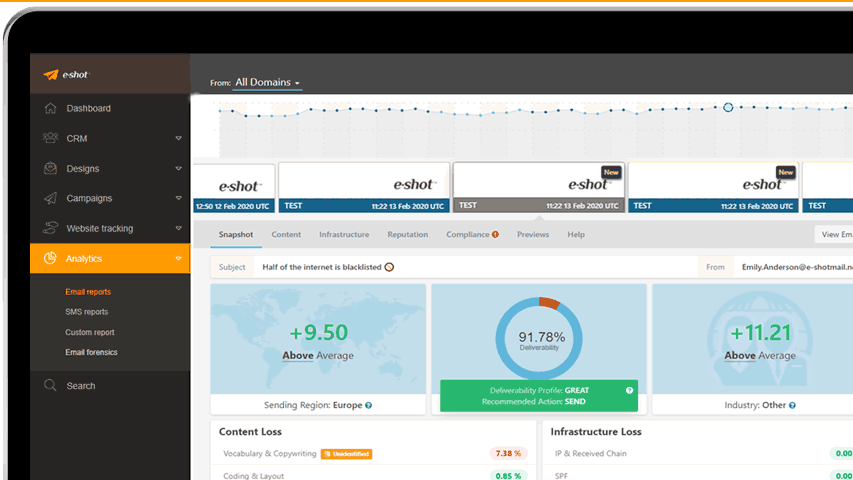
Deliverability - optimising inbox placement
January 7th, 2020 - Sadie Burgess
By bringing together our advanced infrastructure, specialist technical knowledge and leading technology and tools, we hope that e-shot™ is your...
CRM Campaigns
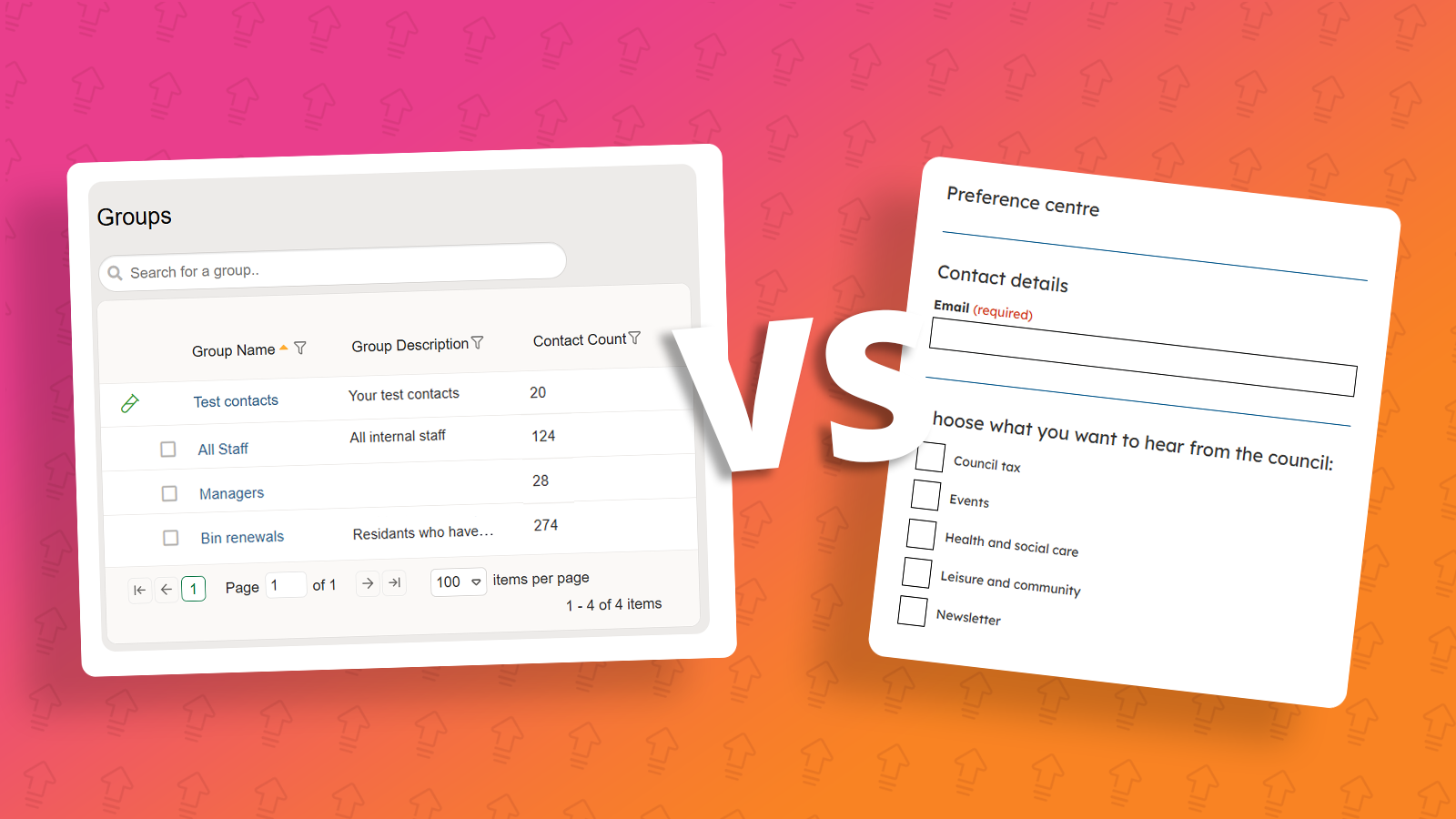
Groups vs Preferences
August 11th, 2026 - Harry Thomas
In e-shot there is two ways to organise contacts in your account. Them being Groups and Preferences. While both function as mailing lists, they...
Best practice Deliverability
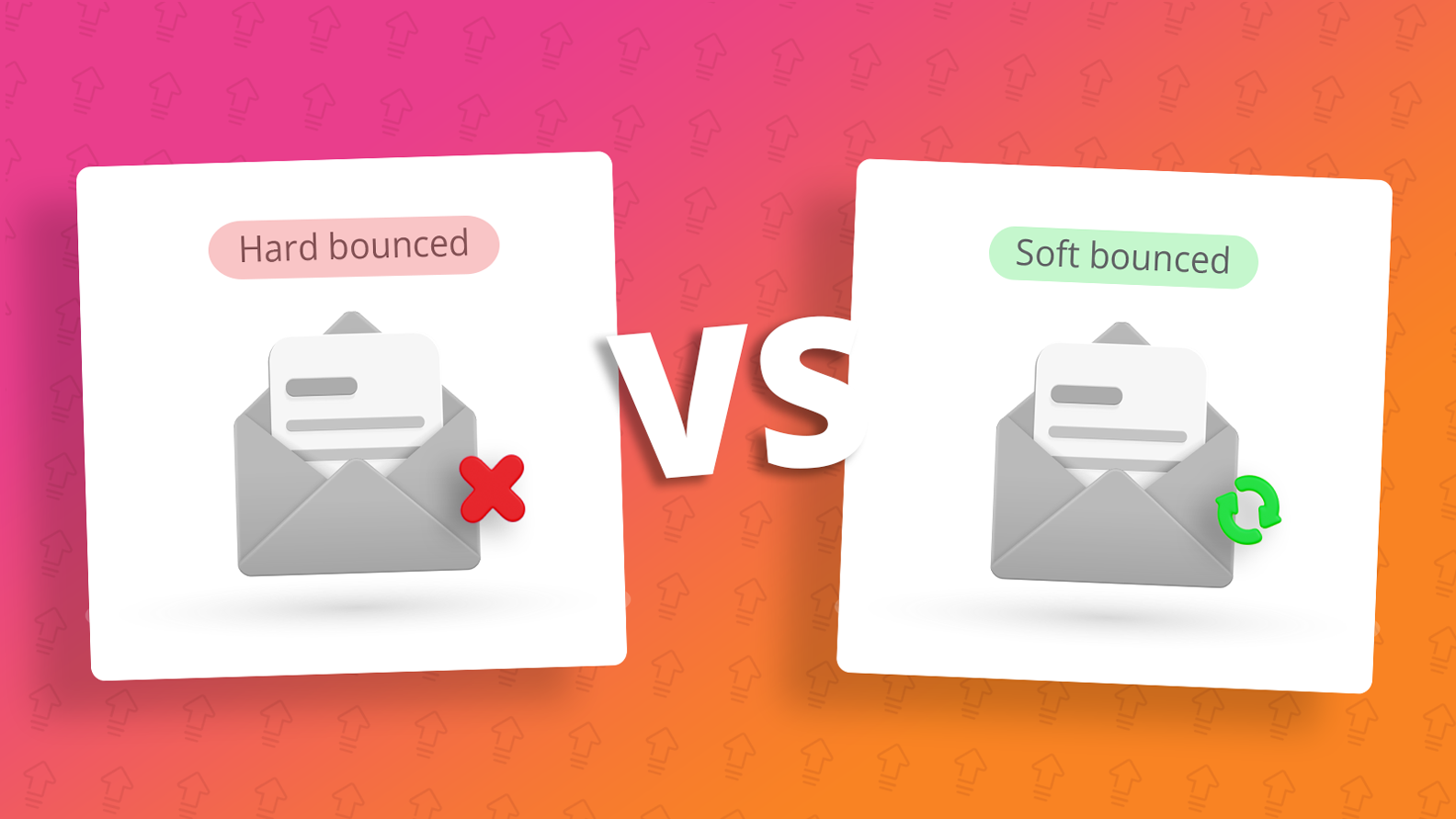
Hard bounce vs soft bounce: What's the difference?
August 26th, 2026 - Sadie Burgess
According to the DMA's Marketer Email Tracker 2026, email remains a core marketing channel, with 74-83% of marketers using it across every...
Solutions

Email Marketing
Create email campaigns and newsletters and manage end-to-end subscription processes with forms and preferences.

Marketing Automation
Create sophisticated automated campaigns for email and SMS combined.

Digital Communication
The comprehensive solution to manage and automate your digital communication across email, SMS, websites and landing pages.

Email marketing healthcheck
We are confident that we can help you, which is why we offer a free healthcheck to identify potential issues with your current programme and free advice on things that could be done to improve it.