Help articles
CATEGORY: help-articlesFAQsSettings
Enabling MFA: Administrator Guide

To protect your security, you should restrict access to your account by using Multi-Factor Authentication (MFA).
You will sign in using your email, password and authenticate with SMS or a mobile Authenticator app.
Before you start
Here are some things to know before you begin this process:
You will need to download a mobile Authenticator app for your Apple or Android device e.g., Google Authenticator, Microsoft Authenticator, LastPass Authenticator, etc.
The Authenticator app will provide you with a 6-digit passcode that you will enter to confirm your identity (something you know – email and password + something you have – your mobile provides the passcode).
Restrict access for users using MFA
Global account Administrators can enforce MFA for all the users in the organisation. To do so head to Settings > Account settings > Security.
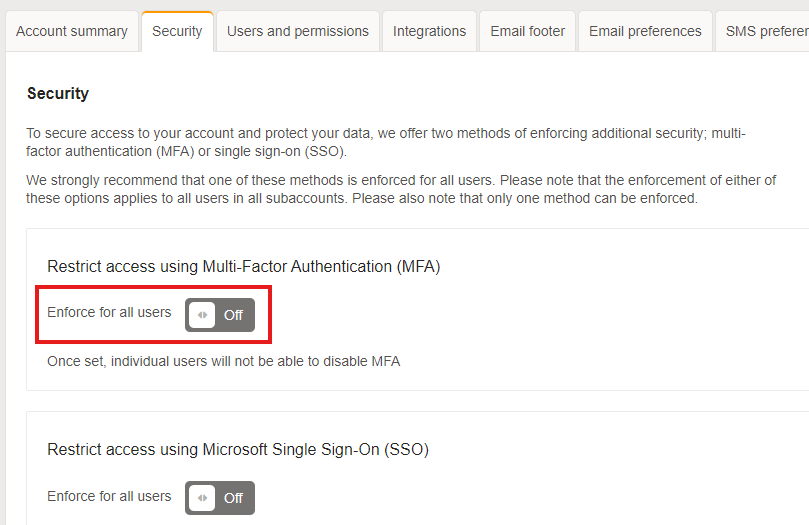
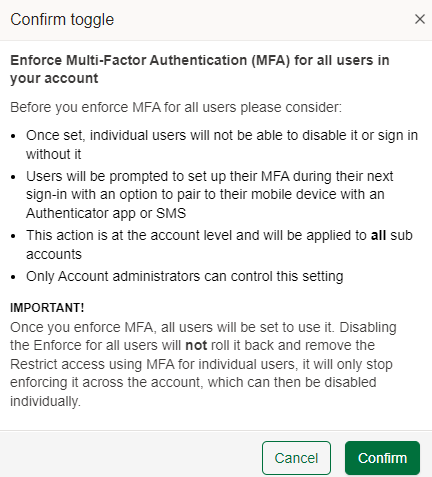
Once you click this toggle, you will be shown the below pop up which gives you some detail as to what enabling this option will mean for your account as a final warning. Before enforcing MFA, please ensure you have thought it through and have let all your users know of the change.
Signing in for the first time after enforcing MFA
When you sign in to e-shot after MFA has been activated (by you or your administrator), you will need to sign in as normal with your email and password.
You will be presented with a QR code to register your Authenticator app with your e-shot account as shown below.
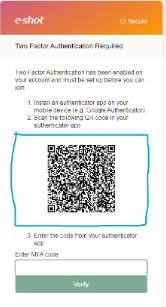
To continue, simply follow the on-screen instructions, downloading an Authenticator App if you have not previously done so and scanning the QR code presented on the screen.
Once you have entered the 6-digit passcode presented by the Authenticator, click the ‘Verify’ button to continue.
You will now be signed in.
Next time you sign in, you simply enter the passcode from your Authenticator app and select verify to continue.
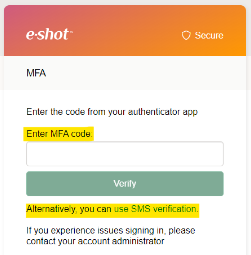
*You will notice in the image above that there is also the option to authenticate using SMS. This is only possible if you included your mobile number in your e-shot user profile. To enter your mobile number, go to your profile and add your number.
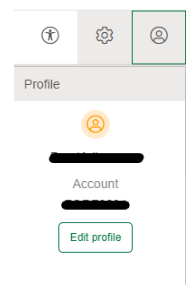
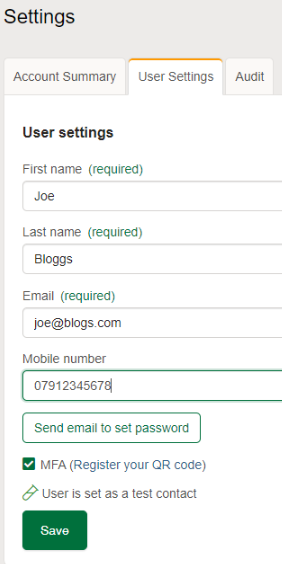
Once your number is in the system you have the choice to use a passcode from your Authenticator or receive it by SMS.
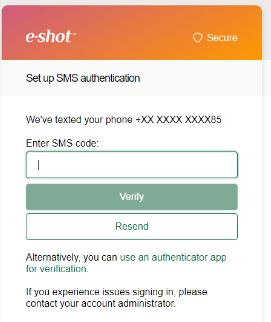
Note: The system will remember your authentication for 30 days before asking you to supply a passcode again as long as you sign in from the same device and browser.
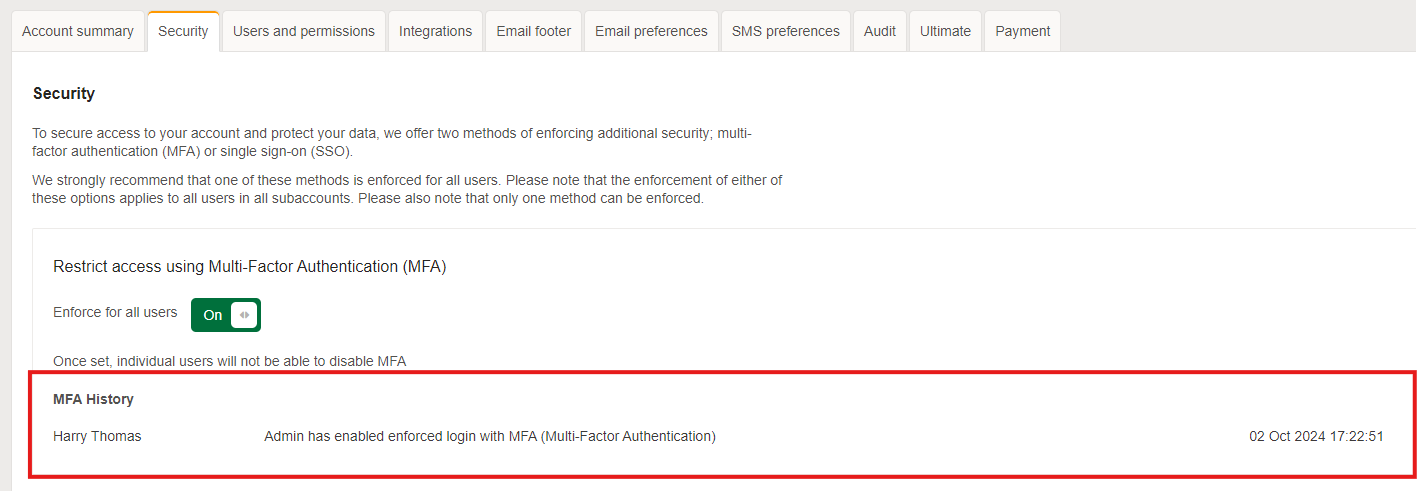
For account admins, once MFA is enabled, you will find an audit of the actions performed with MFA on the same security tab as well as in the audit.
What happens if my phone is lost or broken?
When you enable MFA, you register a link between your mobile device and e-shot or if you use SMS, between your mobile number and e-shot. If you cannot access the device that you registered to generate your passcode, depending on whether or not you set up the alternative sign in with SMS by entering your mobile number, you will need to do one of the following.
If you set up your mobile number in your profile and your number has not changed, you can sign in to your e-shot account using SMS to generate the passcode, once logged in, click on the "person" icon in the top right corner then click edit profile. Then you can click either the "Reset MFA" button or the "Pair your device authenticator using QR code" link and follow the steps.
If you have not set up your mobile as an alternative to sign in with SMS, you will need to contact your account administrator and ask them to go to the Users and permissions settings, click edit on your account then click the "Reset MFA" button. Next time you log in you will be prompted to set up MFA.
You may also like these articles
Data Protection
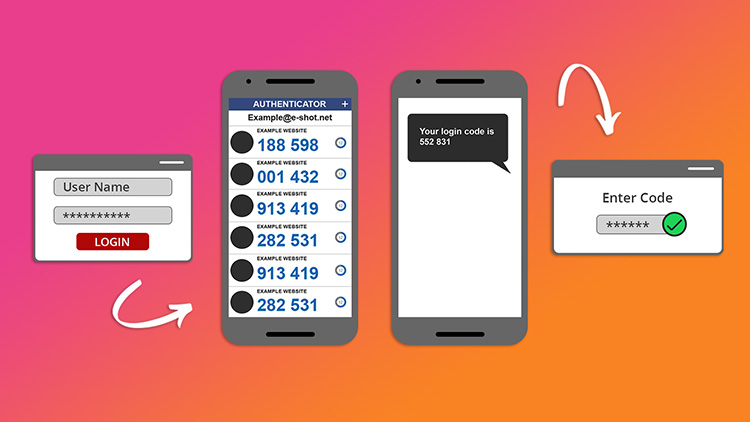
Multi-factor Authentication (MFA): What is it and why you need it
March 1st, 2022 - Sadie Burgess
Traditional usernames and passwords can be easily compromised. Multi-factor authentication (MFA), is a security control that requires users to...
Settings help-articles
Enabling SSO with Microsoft 365: Administrator Guide
June 7th, 2023 - Harry Thomas
This guide is intended for your IT support team to enable authorised e-shot users to sign in to e-shot by using their Microsoft 365 credentials....
FAQs Settings
Keeping your e-shot account secure
July 23rd, 2021 - Harry Thomas
e-shot offers a high level of security to keep its users safe. The system offers users a choice of enhanced authentication when they sign in and...
Solutions

Email Marketing
Create email campaigns and newsletters and manage end-to-end subscription processes with forms and preferences.

Marketing Automation
Create sophisticated automated campaigns for email and SMS combined.

Digital Communication
The comprehensive solution to manage and automate your digital communication across email, SMS, websites and landing pages.

Email marketing healthcheck
We are confident that we can help you, which is why we offer a free healthcheck to identify potential issues with your current programme and free advice on things that could be done to improve it.